Hello World
Getting Started with Lua Scripting
Every game includes one complimentary script slot to help you evaluate the benefits of using Lua Scripting for your project. Follow these steps to create and execute your first script.
1. Creating and Editing Your Script
-
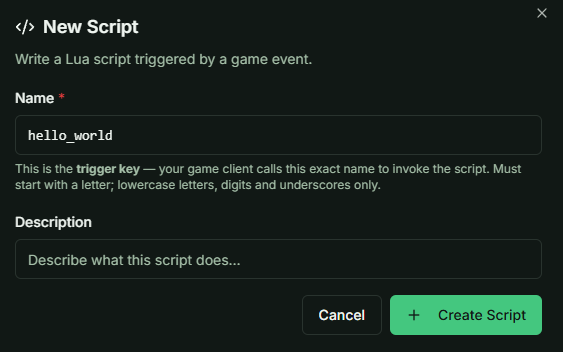
Initialization: Create a script with a valid name. This name serves as the unique keyword used to trigger the script from your game client.
-
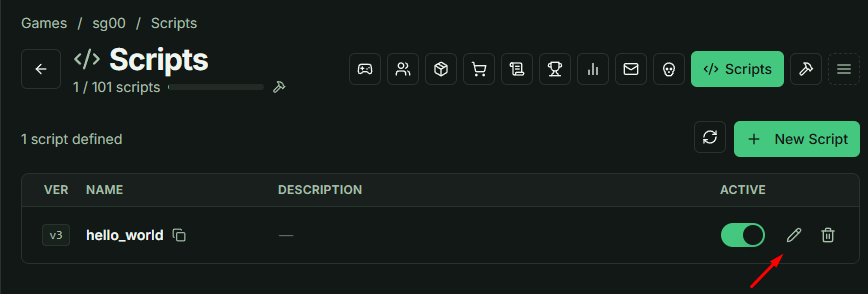
Access the Editor: Click the Edit icon in the script list to open the integrated web-based Lua editor.
2. Using the Editor Interface
The editor is divided into two primary sections:
- Script Workspace: The main area for writing logic.
- Template Library: Located on the right. Navigate to the Core tab and select
#1 tut_hello_outputto automatically load the sample code.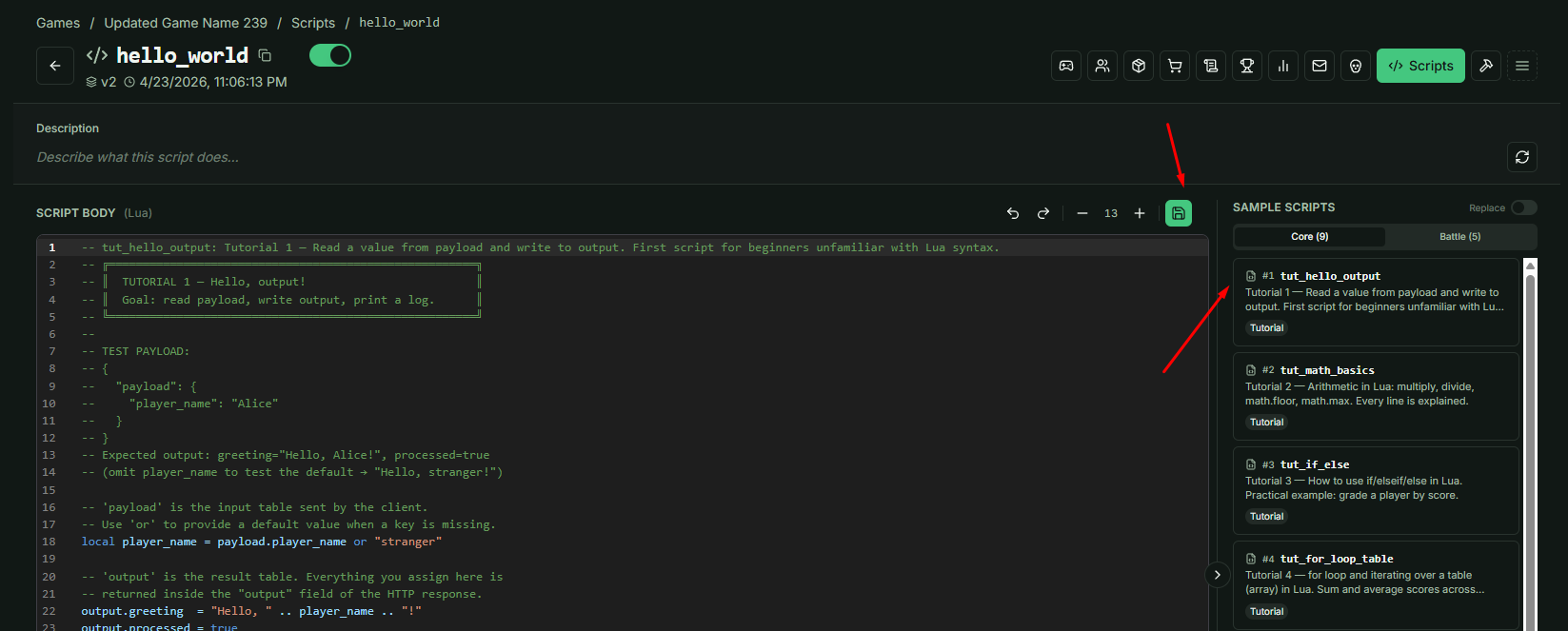
Important: Always press Ctrl+S or click the Save icon in the top-right corner after modifying your code.
3. Execution and Testing
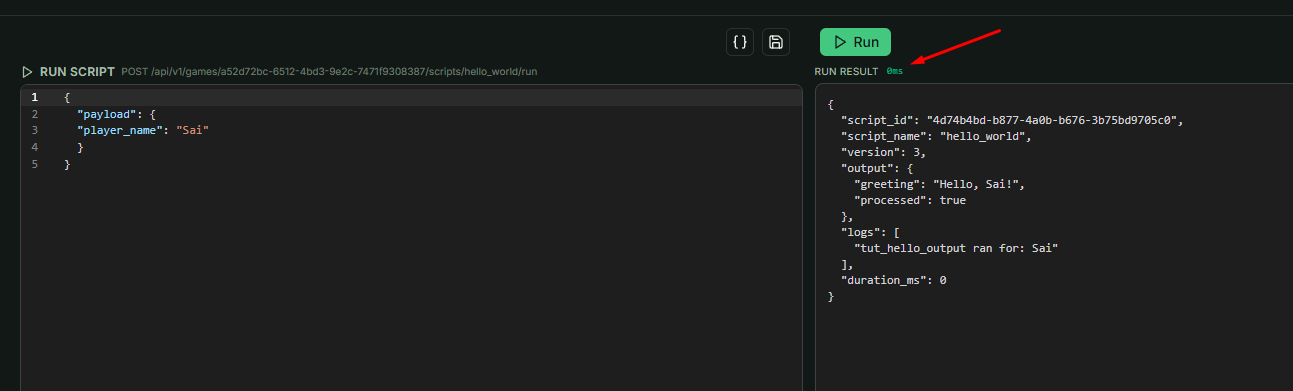
Once saved, scroll down to the Run Script section to test your logic.
- Payload Input: Enter your name into the payload field (refer to the example image).
- Execution: Click Run.
- Analysis: The Run Result pane will display the JSON response and the execution time in milliseconds (ms).
4. Performance Constraints
To ensure server stability and optimal performance, all Lua scripts are subject to the following rule:
- Maximum Execution Time: 500ms
Note: If your script exceeds the 500ms limit, it will be terminated. You must optimize your logic to stay within this performance window.
5. Executing Scripts in Unity
Once you have verified your script in the Web Editor, you can implement it within your game client:
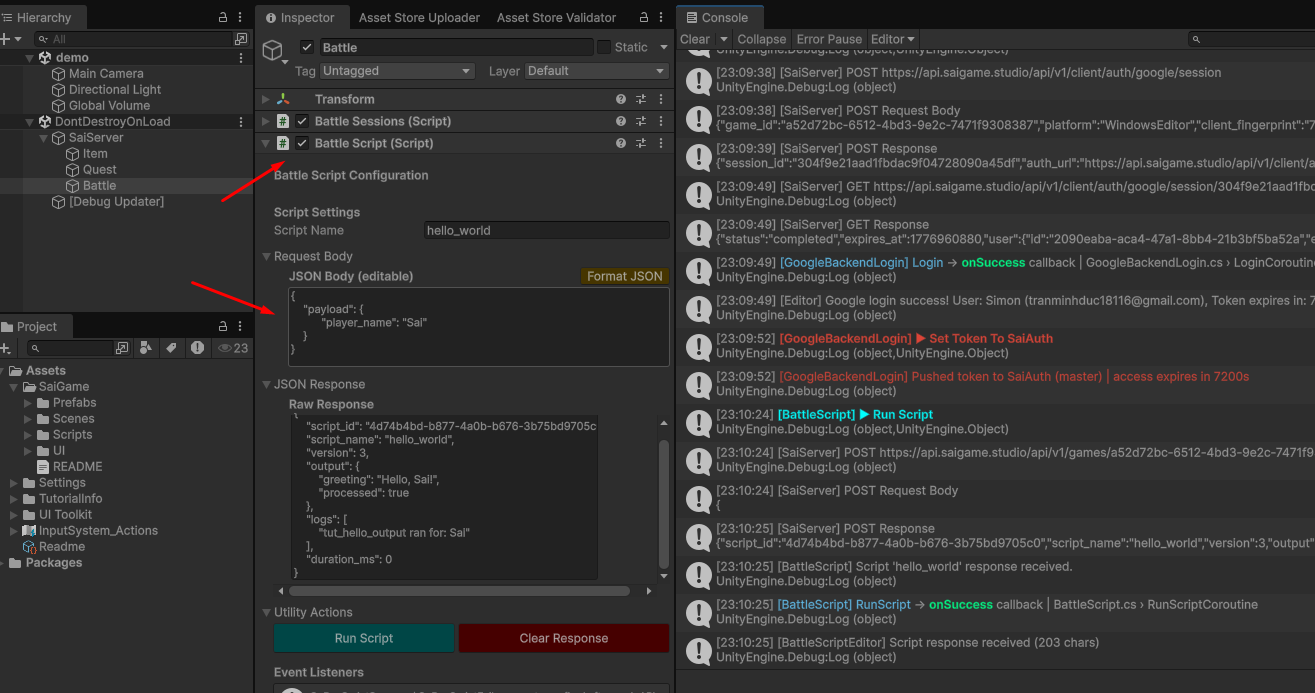
- Implementation: Navigate to the
BattleScriptclass in your Unity project. - Verification: Run the logic within the Unity environment. You will find that the output and behavior remain perfectly consistent with the results seen in the Web Editor.