
Reposition Item in Container
This guide shows how to define an item with grid size and move it within a player's container in Unity.
1. Item Definition
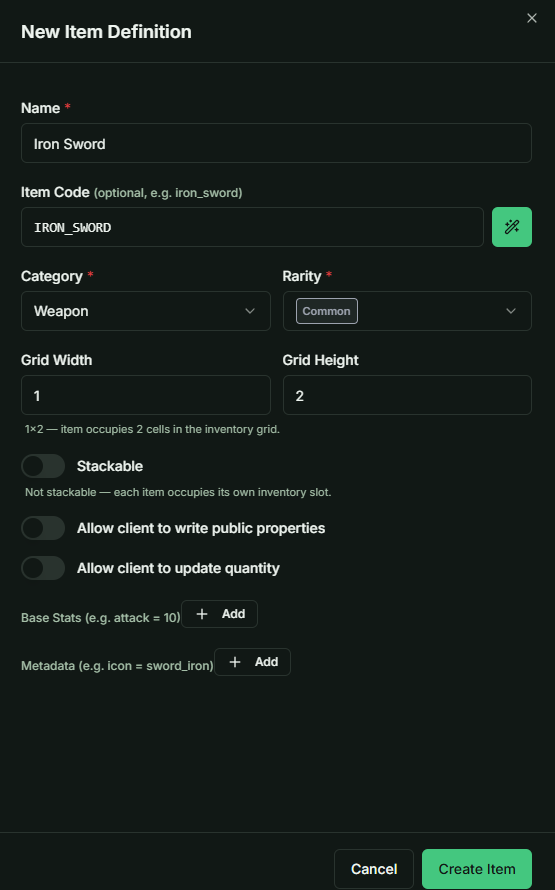
Create a new item in the Admin panel with the following specifications:
- Item Name: Iron Sword (or any preferred name).
- Grid Dimensions: Set the width and height to 1x2.
2. Distribution and Retrieval
-
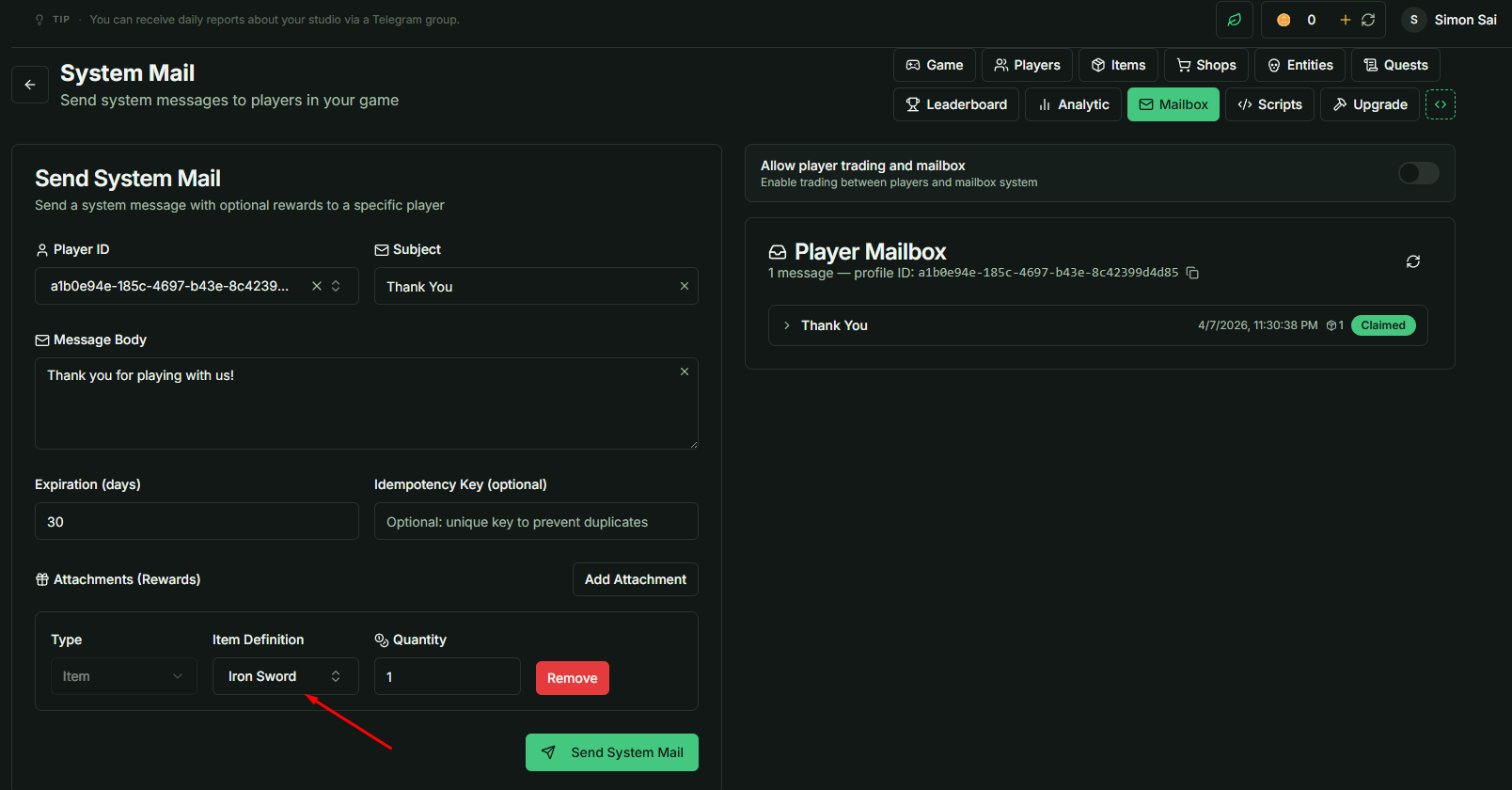
Send Item: Use the Mailbox system in the Game Admin to grant this item to a player.
-
Claim Item: Launch your project in Unity and execute the
Claimaction within theMailboxclass to move the item from the mail system to the player's inventory.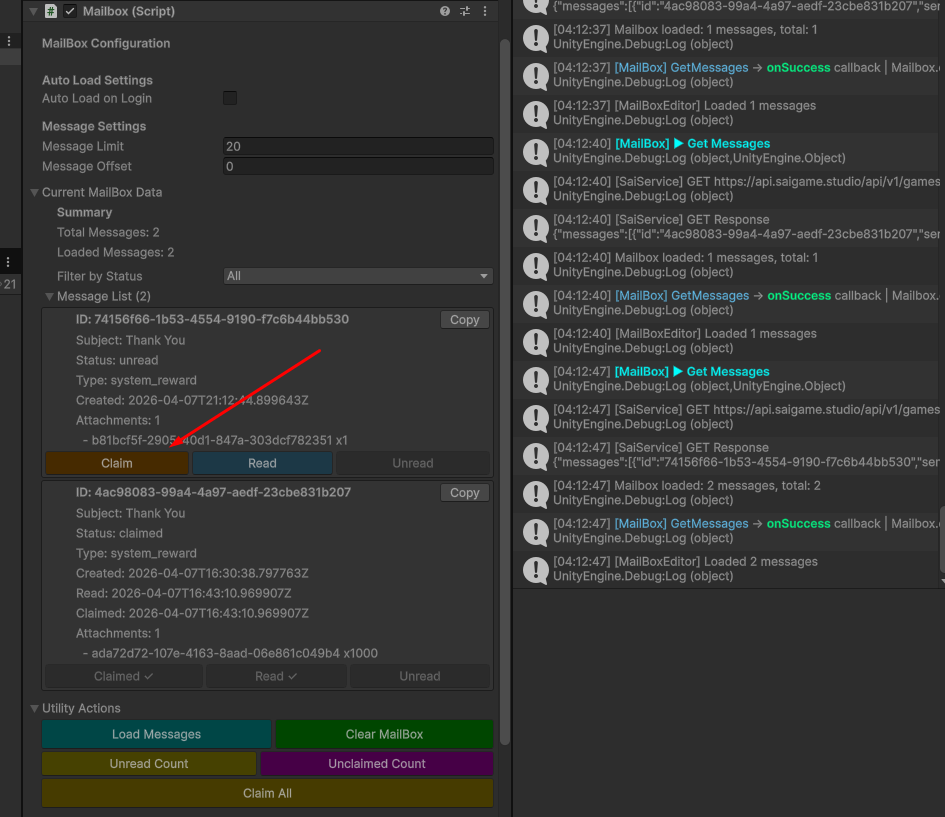
3. Verifying the Initial Position
Before moving the item, you must identify its current coordinates:
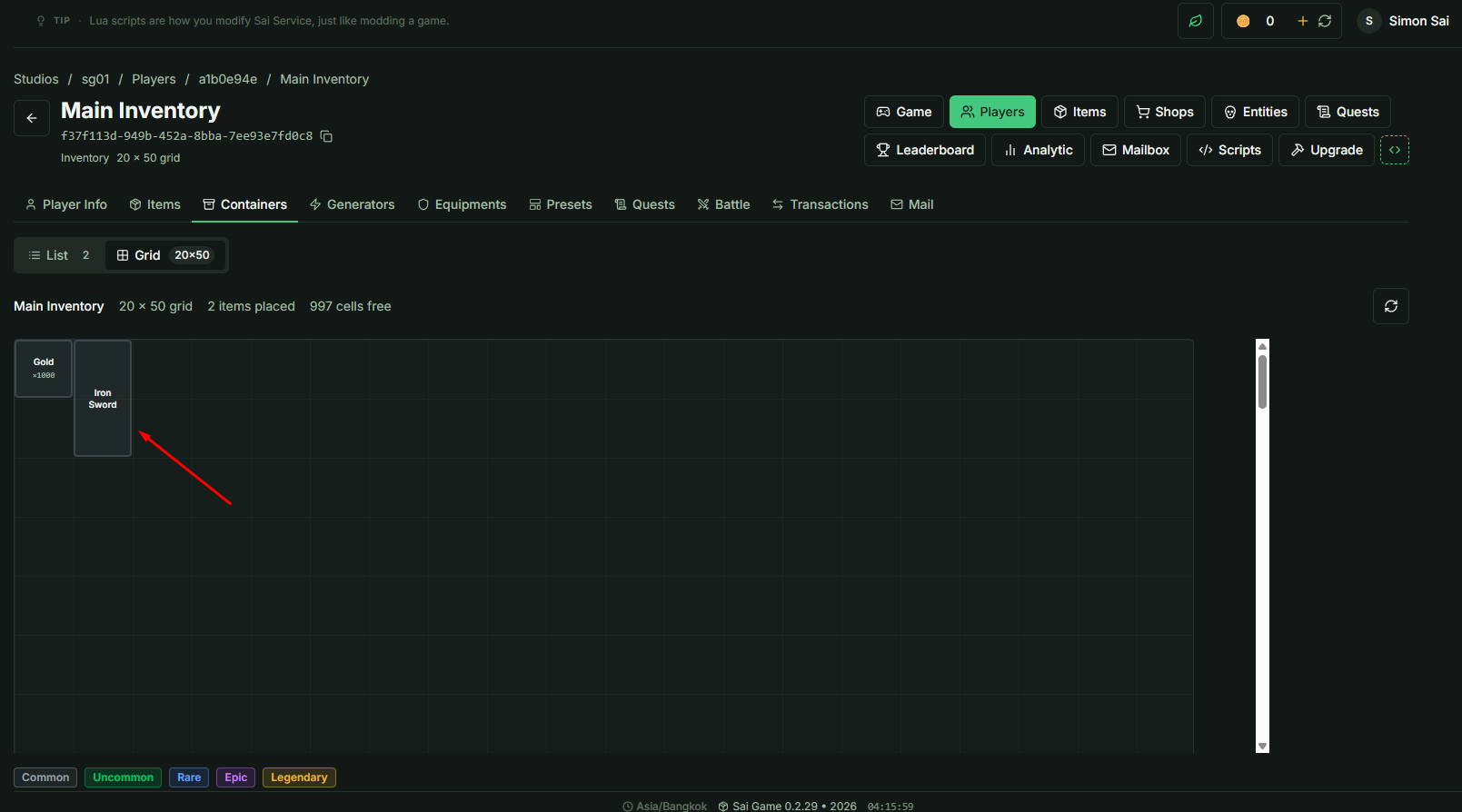
- Navigate to the Sai Game Admin.
- Open the Main Inventory tab for the player.
- Switch to the Grid View.
- Note: Observe and remember the current X and Y coordinates of the Iron Sword.
4. Moving Items via Unity Inspector
To manually test item relocation, use the built-in movement tools in the Unity editor.
Execution Steps
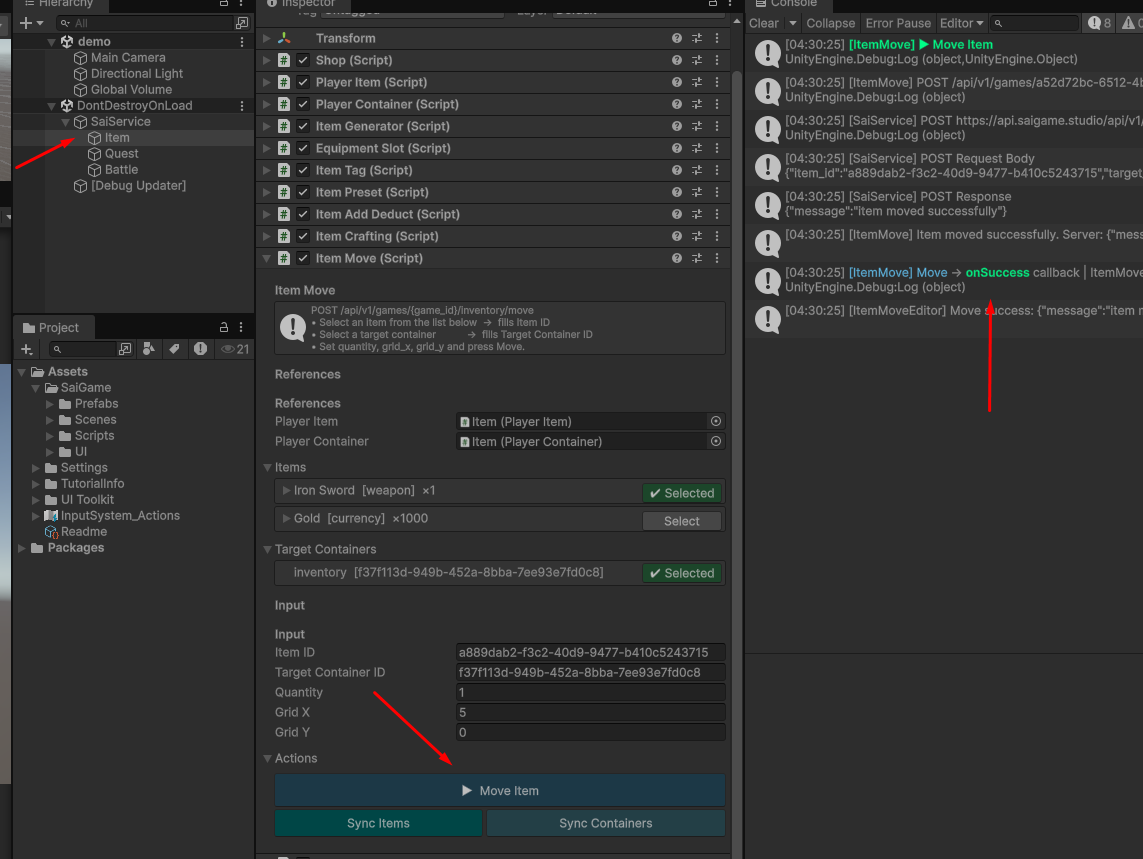
- In the Unity Hierarchy, locate the child object under
SaiServicenamed Item. - Select the Item Move class component.
- Sync Data: If the Iron Sword does not appear in the list, click the Sync Item button.
- Target Identification: Select the Iron Sword and the target Inventory.
- Note: If multiple containers exist, use the
container_idto ensure you are selecting the correct inventory instance.
- Note: If multiple containers exist, use the
- Set Position: Input the new target coordinates (X, Y) where you want the item to move.
- Execute: Click the Move Item button.
5. Verification and Implementation
-
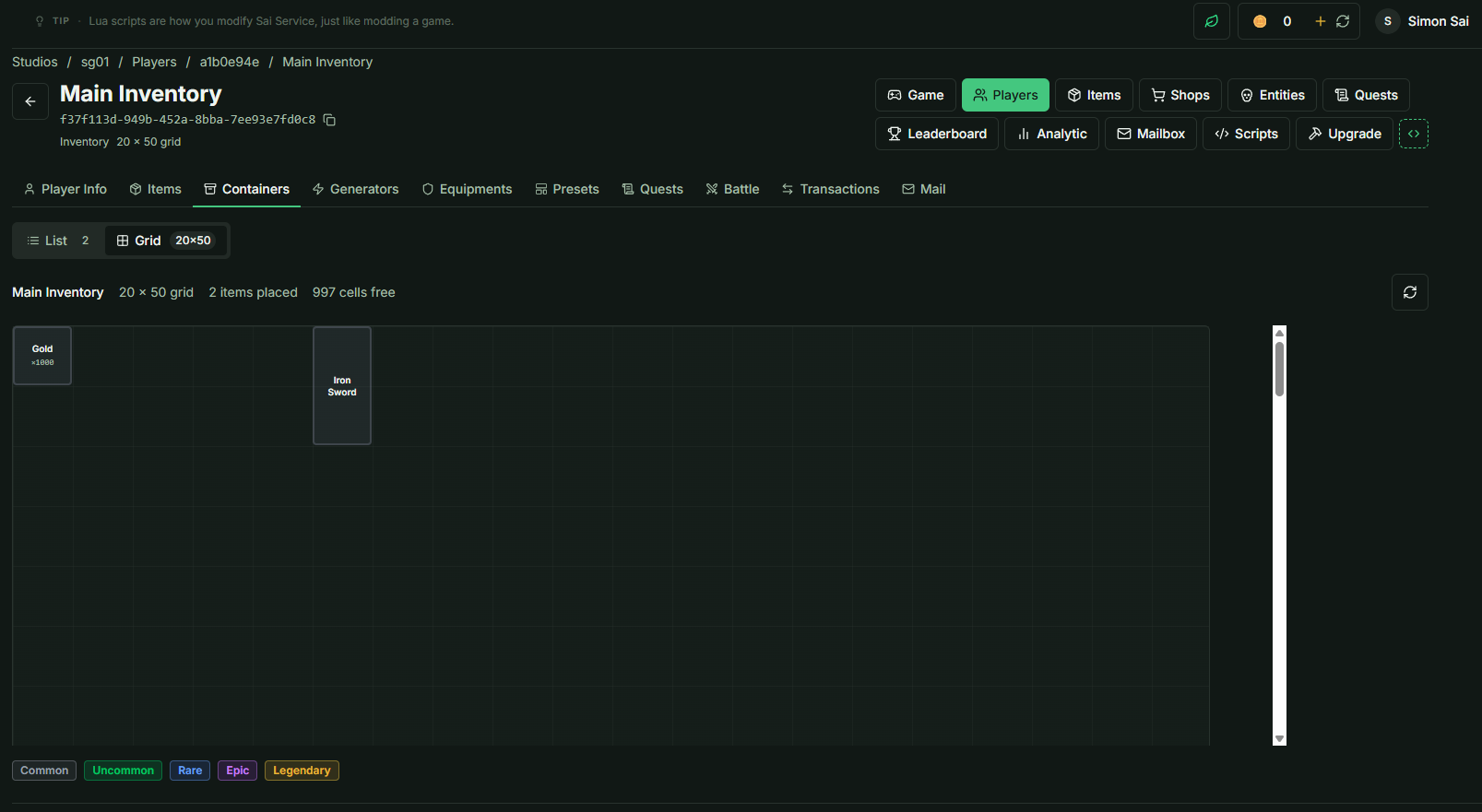
Check Results: Return to the Container view in the Admin panel. You will see that the item has successfully updated to the new coordinates.
-
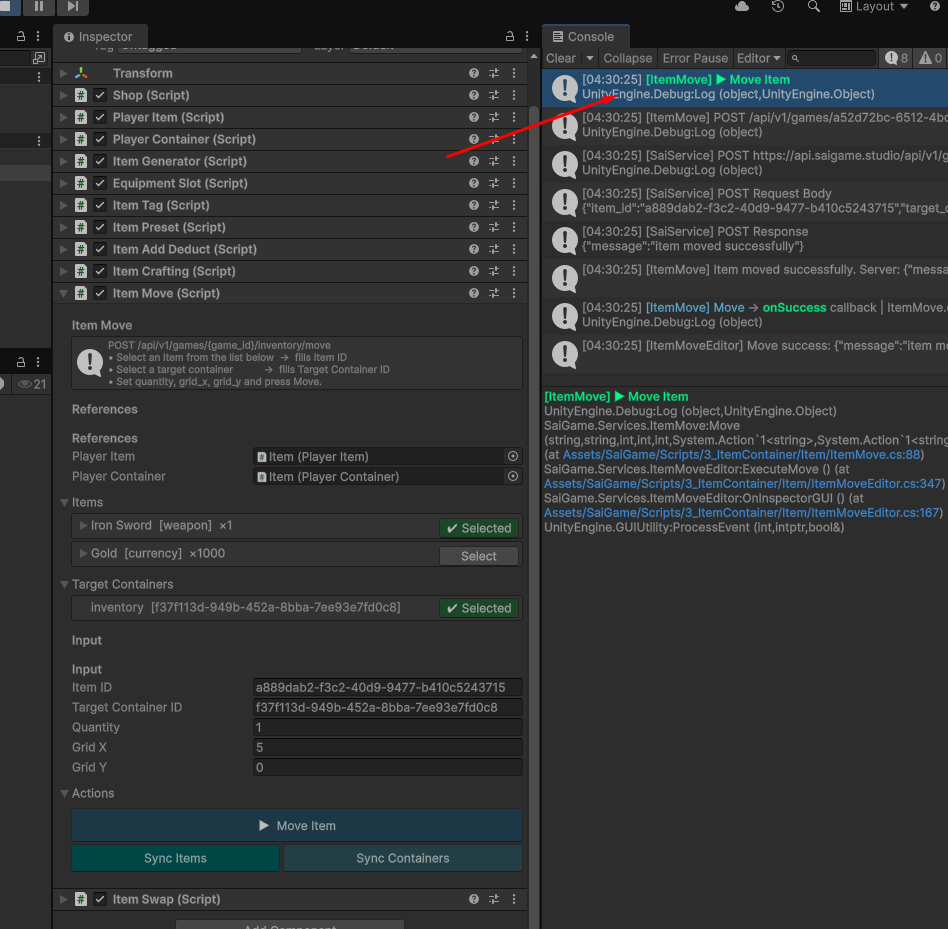
Code Integration: * Double-click the Log Move Item message in the Unity Console.
- This will take you directly to the source code for the movement function.
- Note: You can call this specific method anywhere in your custom scripts to handle programmatic inventory management.
Important: Movement requests are validated by the server. If the target coordinates are already occupied by another item or exceed the container boundaries, the move command will fail.