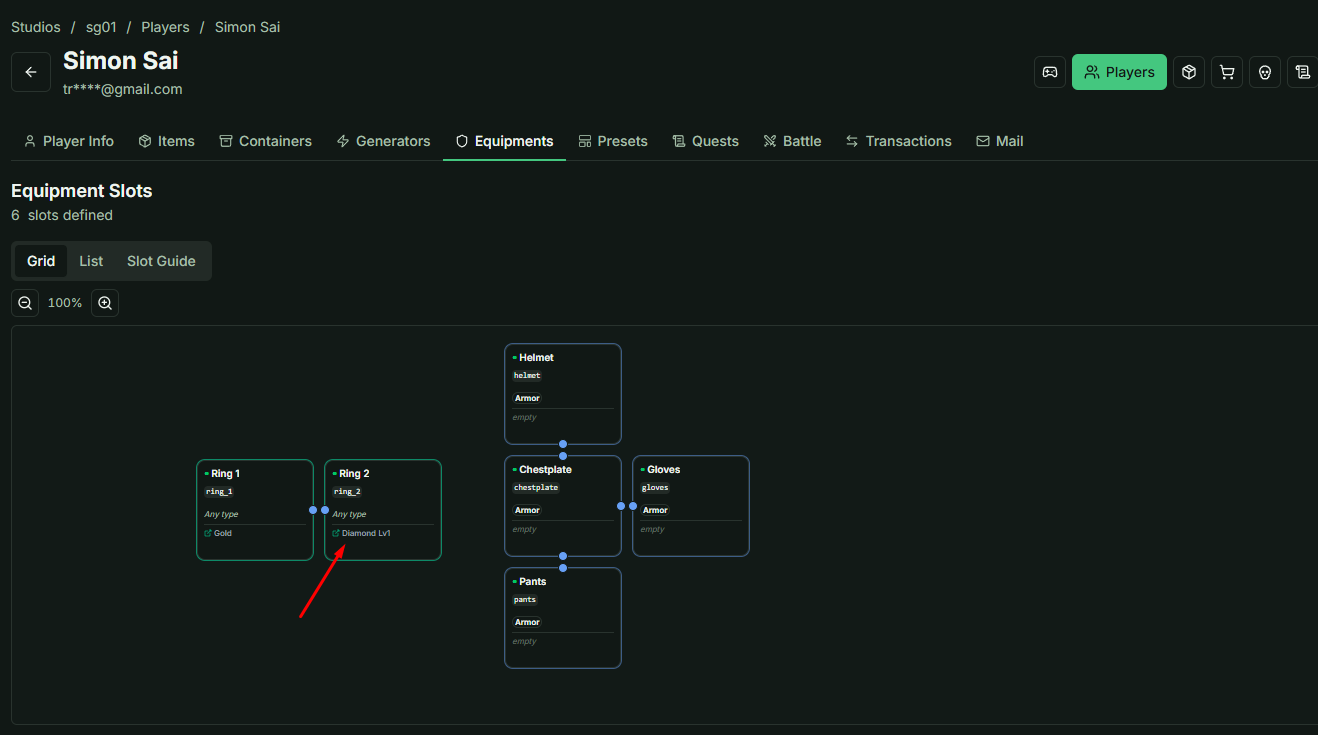
Player's Equipments
This guide explains how to monitor and manage a player's equipped items.
1. Web UI: Player Equipment Tab
Within the Player management section, you will find an Equipments tab. This interface allows you to view all items currently equipped by a specific player.
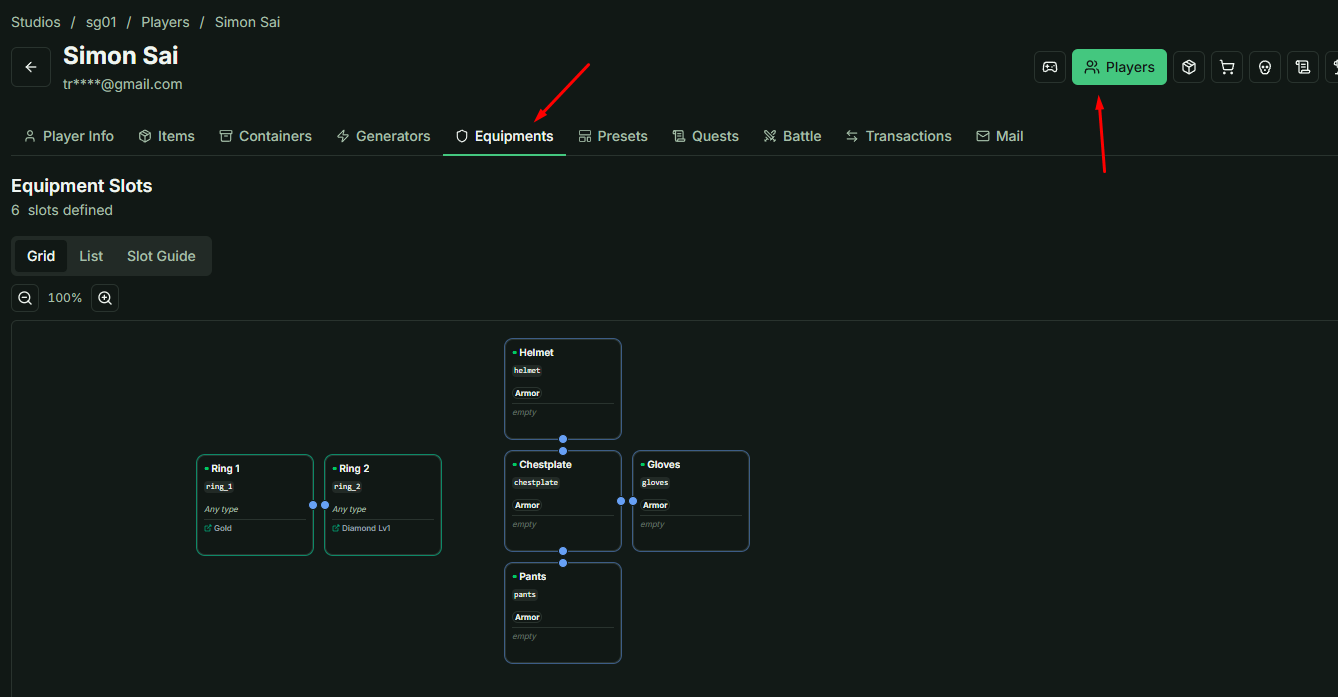
- Sub-tabs: Similar to the Equipment Slot Definitions, this section features three sub-tabs tailored to the individual player's perspective.
- Real-time Sync: Any equipment changes made via the Unity client will be reflected here instantly upon refresh.
2. Unity Integration (Client-Side)
To modify equipment within specific slots, you must perform actions through the Unity Editor. Within the Child Object Item hierarchy, locate the Equipment Slot class.
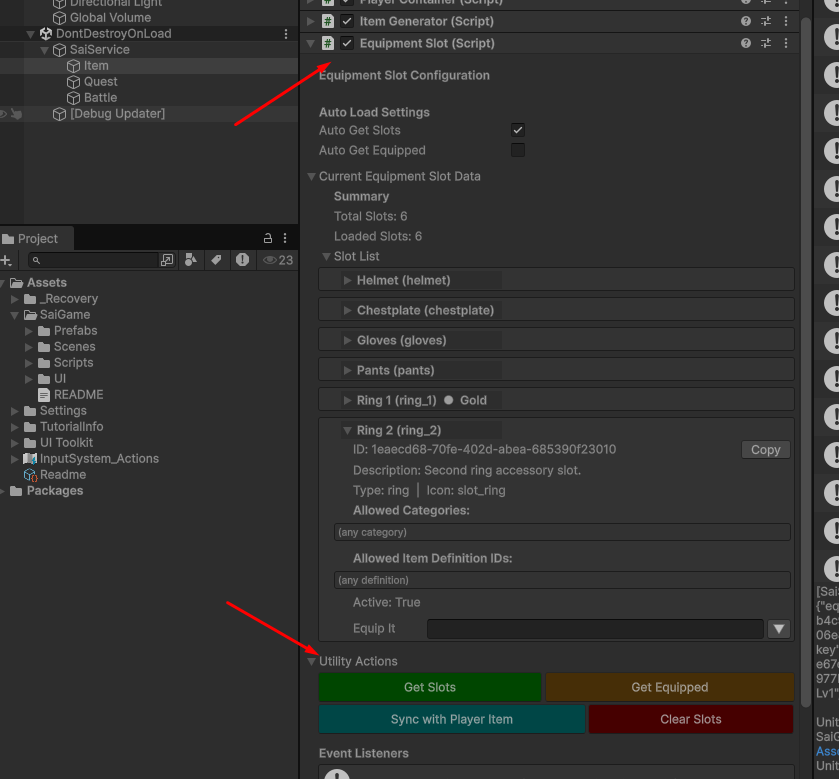
Functional Overview
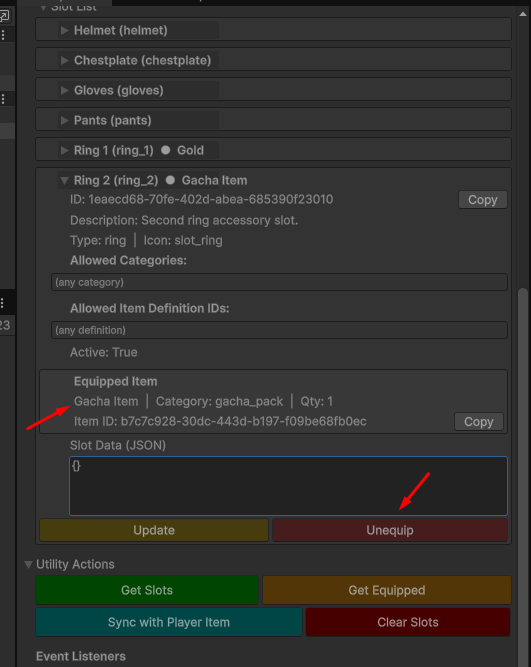
The class provides several buttons in the Inspector to manage slot data:
- Get Slots: Loads all available Slot Definitions. Note that this fetches the slot structure only and does not include the items currently inside them.
- Get Equipped: Specifically loads the items currently residing within the slots.
- Sync with Player Item: Synchronizes data from the
Player Itemclass. This is particularly useful for populating the slot view within the Inspector, making it easier to assign equipment manually for testing.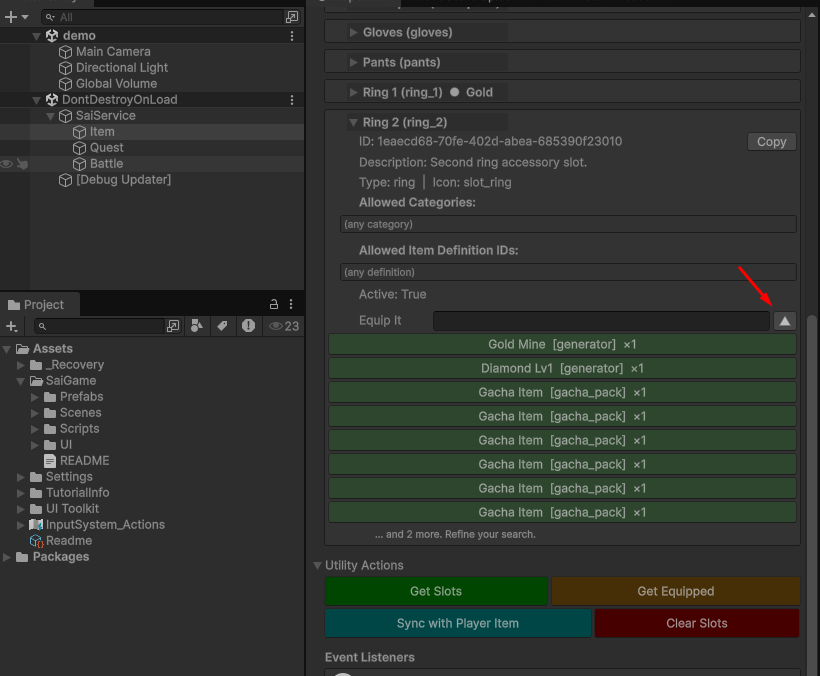
3. Modifying Equipment
Once a slot contains an item, you can perform advanced management directly from the Unity Inspector:
- Metadata Updates: You can modify and update the metadata for both the Item and the Slot simultaneously.
- Unequip Action: An Unequip button is available to remove the item from the slot instantly.
4. Verification
After executing an Equip or Unequip command in Unity, you can verify the results by checking the Player > Equipments tab in the Web UI to ensure the backend data has been updated correctly.