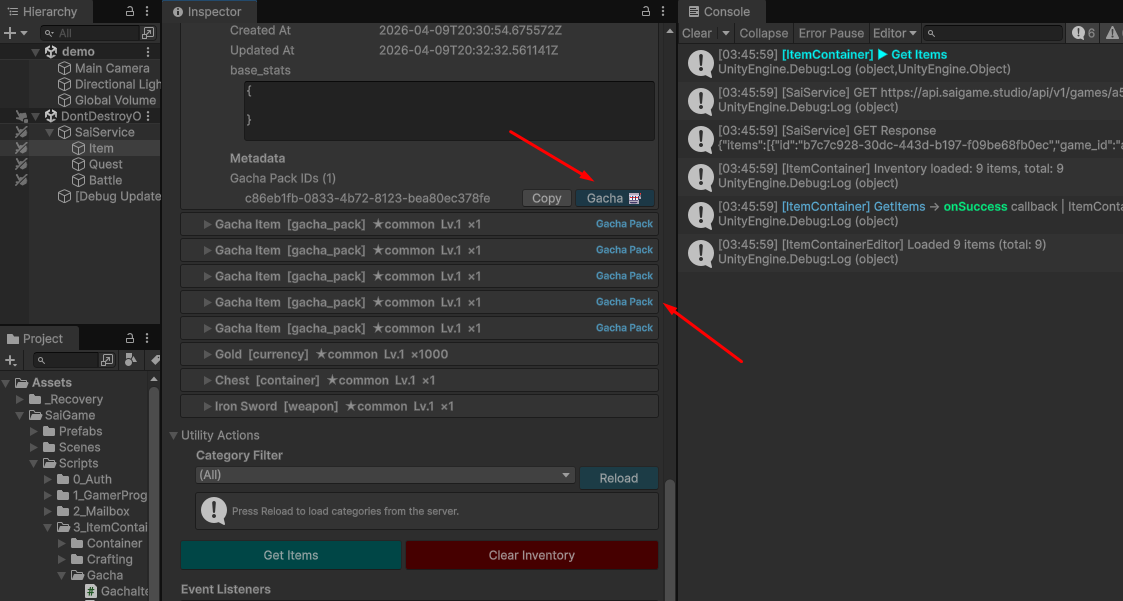
Open Gacha Pack
Guide to Implementing and Opening a Gacha Pack
Technical Guide: Implementing and Testing Gacha Packs
This guide outlines the workflow for linking items to Gacha Packs via metadata, configuring rewards, and executing the opening sequence within the Unity client.
1. Core Logic & Linking
When an item is selected as a Key for a Gacha Pack, a logical link is established through the item's metadata. This metadata ensures the system recognizes the specific item instance as the trigger for the randomized reward logic.
2. Implementation Steps
Step 1: Create the Key Item
- Navigate to the Item Database.
- Create a new item named
Gacha Item. - Set the Category to
Gacha Pack.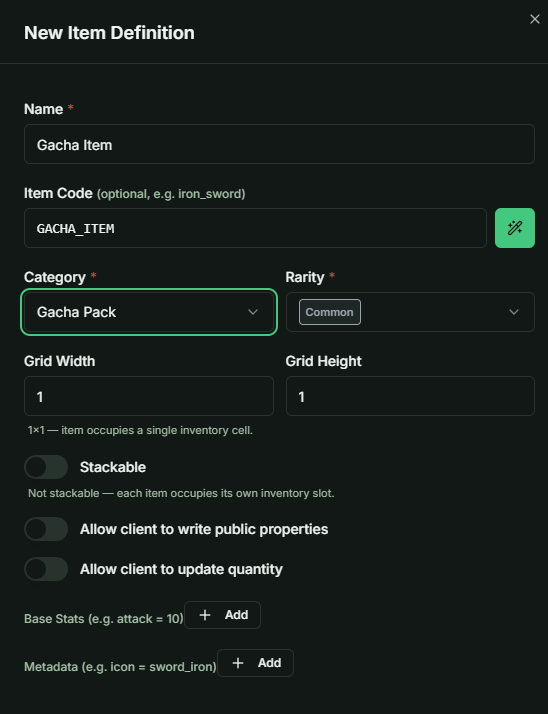
Step 2: Configure the Gacha Pack
- Create a new Gacha Pack definition.
- Assign the
Gacha Itemcreated in Step 1 as the primary Key. - Important: Record the
idandcode_nameof the pack for later use in the client.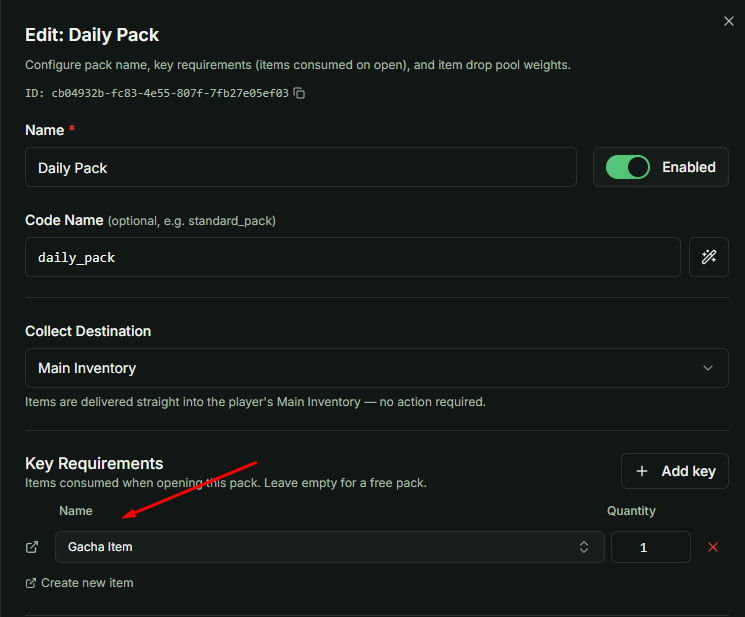
Step 3: Define Rewards
- Select at least two items to serve as rewards.
- Assign drop rates (probabilities) to each item based on your desired balance.
Step 4: Distribute the Key Item
- Access the Mailbox system in the admin panel.
- Send 5 units of the
Gacha Itemto the target player's UID.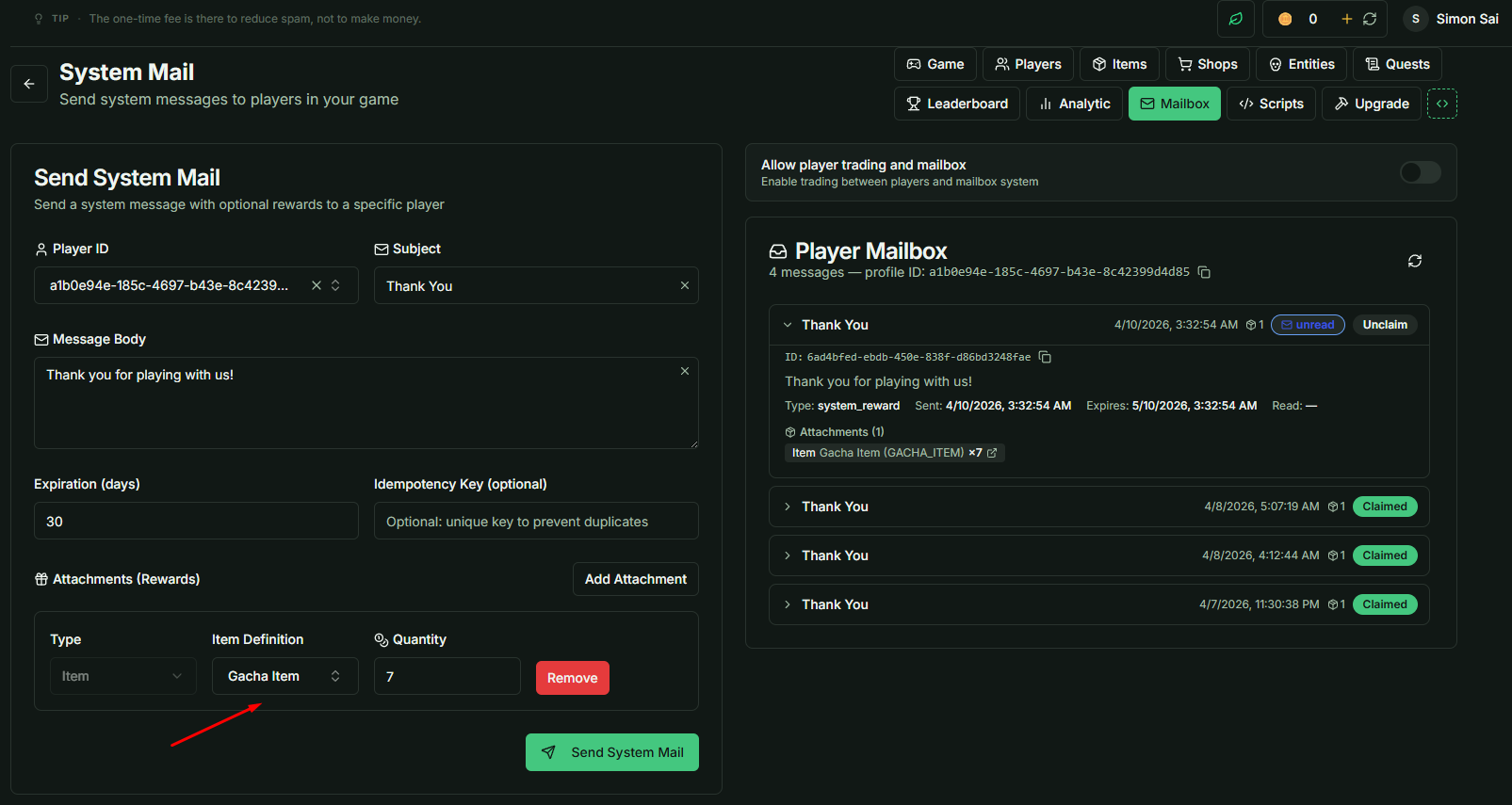
3. Client-Side Testing (Unity)
To verify the integration, follow these steps within the Unity environment:
- Log in to the game client using the player account that received the items.
- Make sure to claim the
Gacha Itemfrom your Mailbox.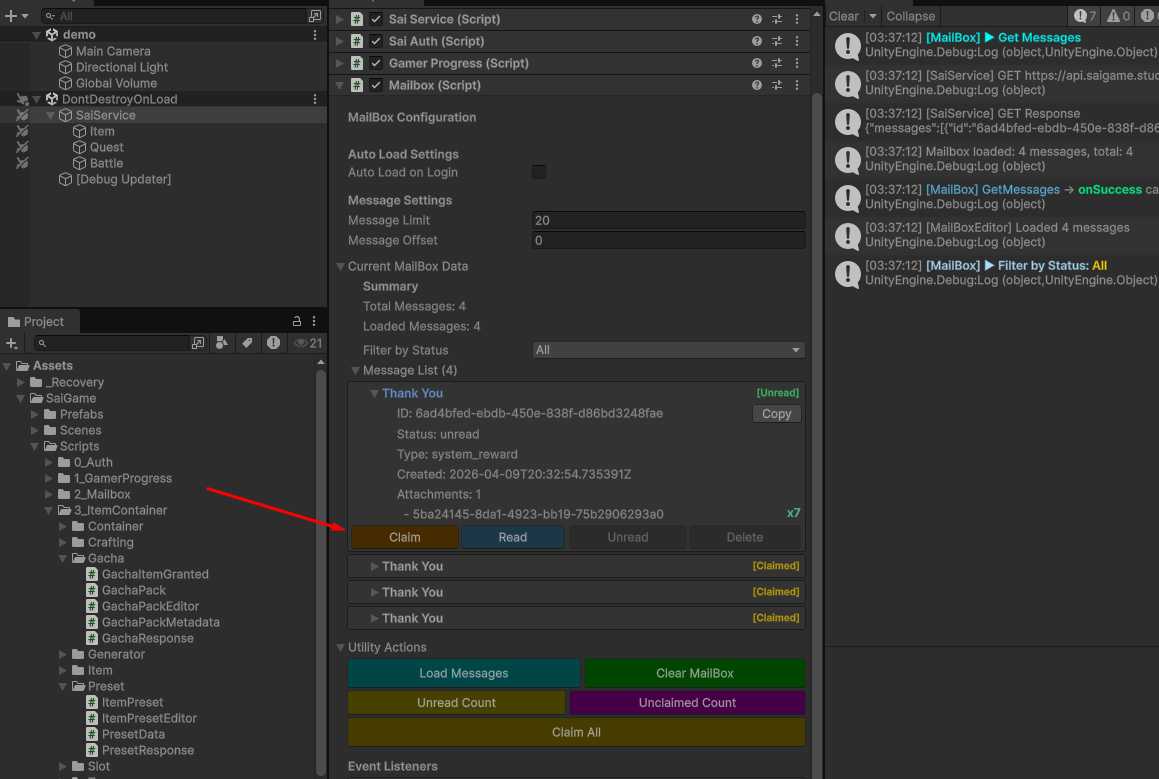
- Locate the
Gacha Packclass within theChild Object Itemhierarchy. - To execute the "Open" command, use either the
IDorcode_namerecorded during Step 2.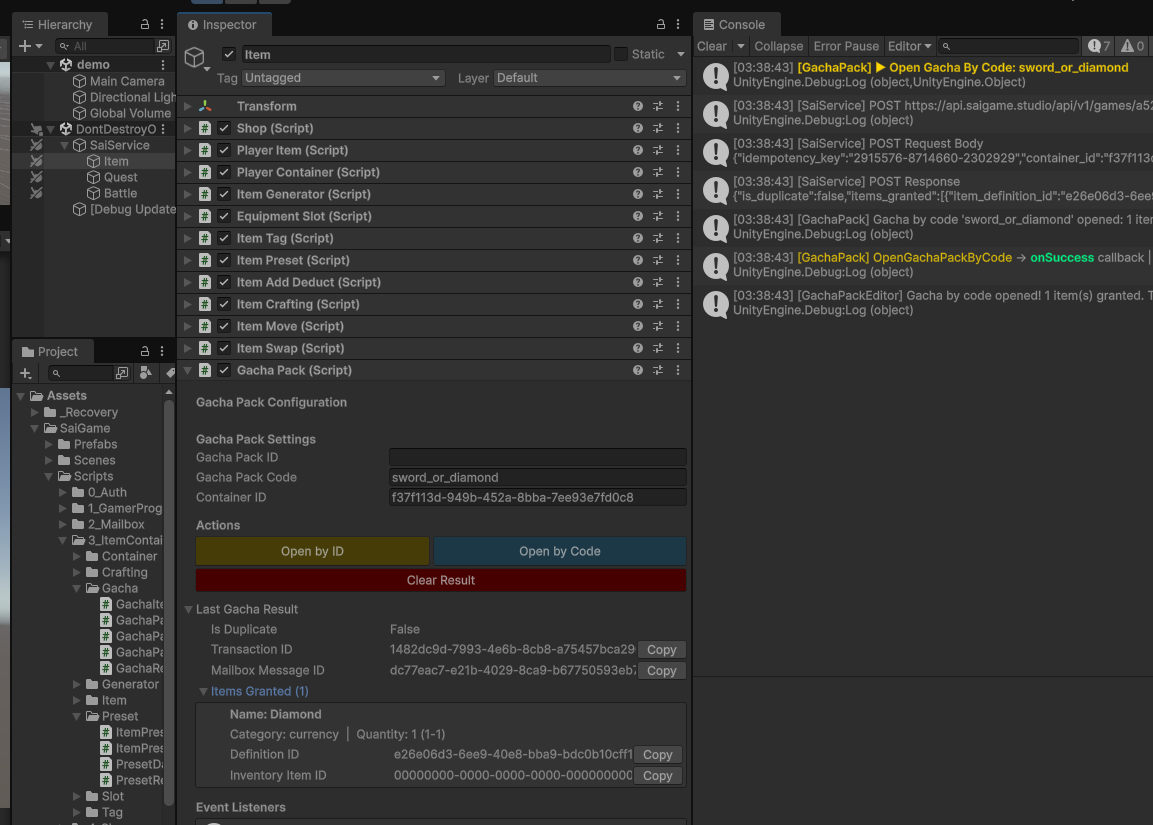
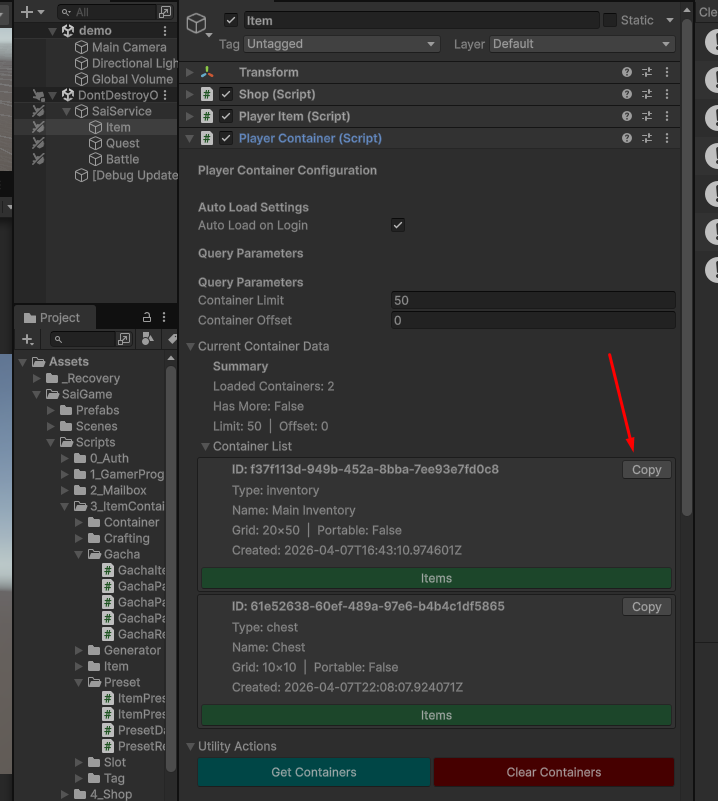
Note: You must specify the Container ID currently holding the
Gacha Item(e.g., Inventory or Vault) for the request to be valid. You can get thecontainer_idfrom the PlayerContainer class.
Reward Retrieval
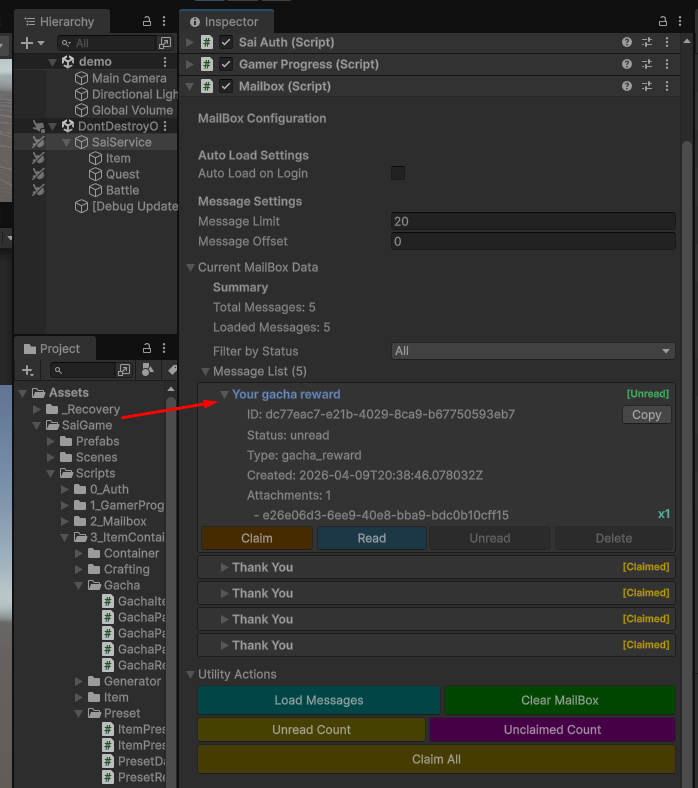
- If the delivery method is set to Mailbox, items will not be added directly to the inventory.
- Players must perform an additional Claim action within the mailbox to transfer the items to their Main Inventory.
- You might wonder why the Mailbox Delivery Method exists, it's designed to prevent issues where a full inventory (due to slot limits) could block transactions or disrupt the user experience.
4. Technical Constraints & Debugging
Container Consistency
If a Gacha Pack requires multiple keys, all keys must reside within the same container.
- Failure State: If Key A is in the Inventory and Key B is in the Storage, the pack will fail to open.
- Solution: Move all required keys into a single container before calling the open function.
Debugging Best Practices
For efficient debugging, Gacha Packs can be opened directly via the PlayerItem or PlayerContainer classes.