
Item Split and Merge
This guide demonstrates how to manipulate stackable items within a grid-based container to perform split and merge actions.
1. Initial State Setup
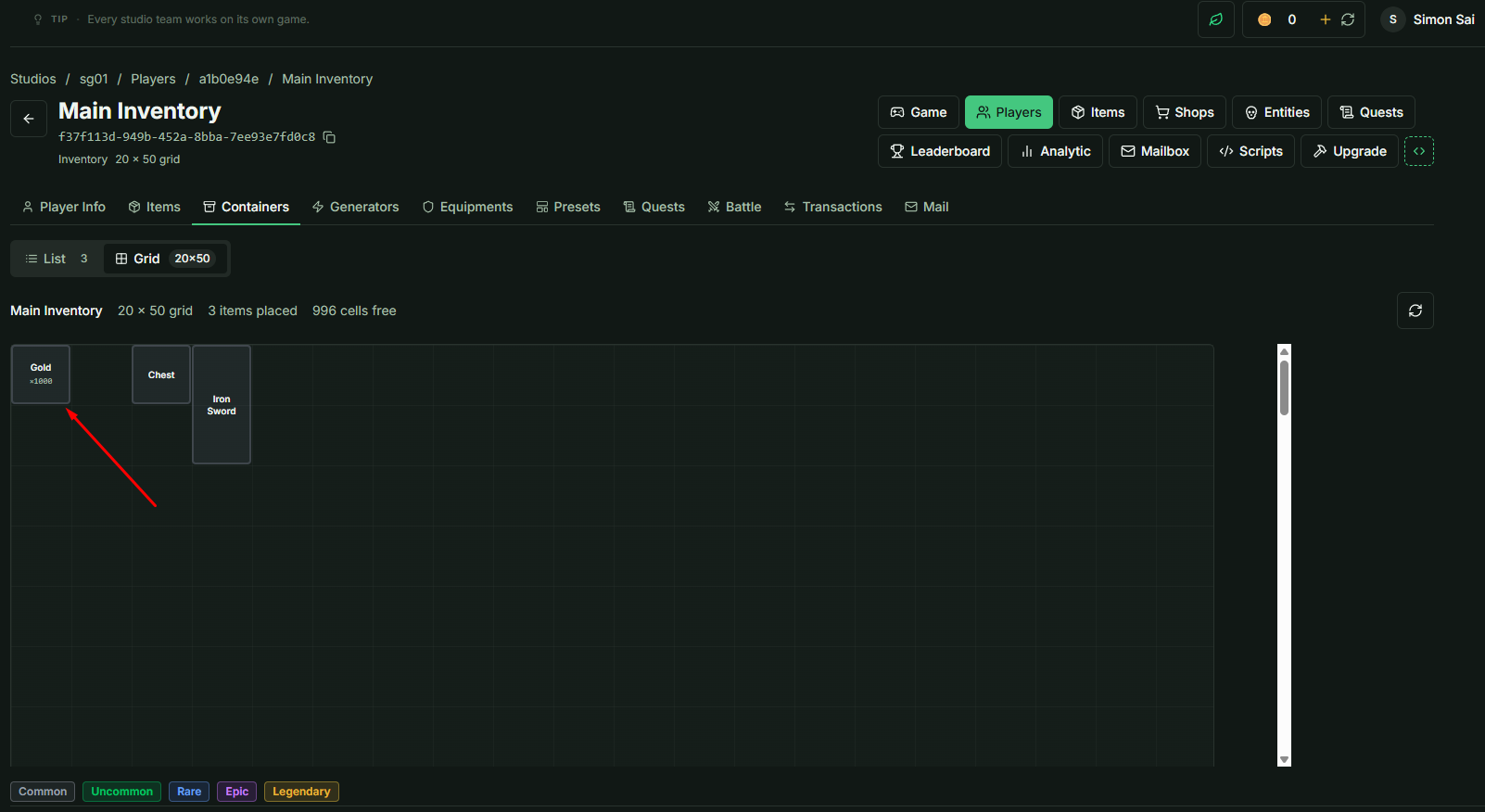
To begin this demonstration, ensure your inventory matches the following state:
- Item: Gold (Stackable).
- Quantity: Exactly 1000.
- Location: Main Inventory at coordinates (0, 0).
2. Performing an Item Split
Splitting occurs when you move a portion of a stackable item to a new empty slot within the same or a different container.
Execution Steps
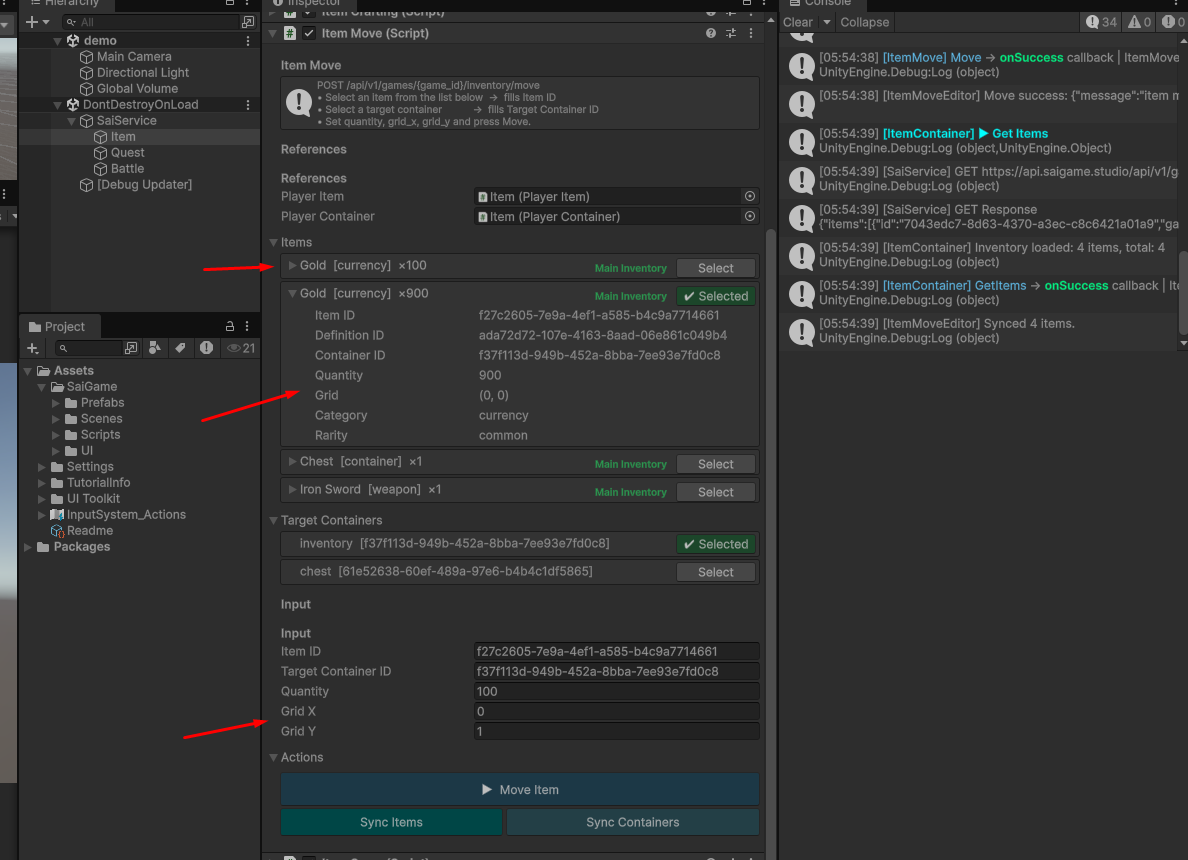
- Open the Item Move class component in Unity.
- Selection: * Select the Gold stack (1000 units) as the source item.
- Select Main Inventory as the target container.
- Parameters:
- Quantity: Set to 100.
- Target Position: Set to (0, 1) (ensure this slot is currently empty).
- Execute: Click the Move Item button.
Result Verification
If successful, the single stack of 1000 Gold will now be two separate items:
- Slot (0, 0): Contains 900 Gold.
- Slot (0, 1): Contains 100 Gold.
3. Performing an Item Merge
Merging occurs when you move a stackable item onto a slot that already contains an item of the same definition.
Execution Steps
- In the Item Move component, select the Gold stack located at (0, 1) (the 100 units).
- Target Position: Set the destination to (0, 0) (the location of the 900 units).
- Execute: Click Move Item.
Result Verification
The two stacks will combine into a single entity:
- Result: One stack of 1000 Gold at position (0, 0).
Note: Item splitting is only possible if the target slot is empty. Item merging is only possible if both items have the same Item Definition ID and the resulting stack does not exceed the maximum stack limit defined in the Admin panel.