
Creating Custom Containers
This guide walks you through creating a new type of storage and transferring items between different player containers.
1. Creating the Container Item
First, we must define the physical item that represents the storage in the game world.
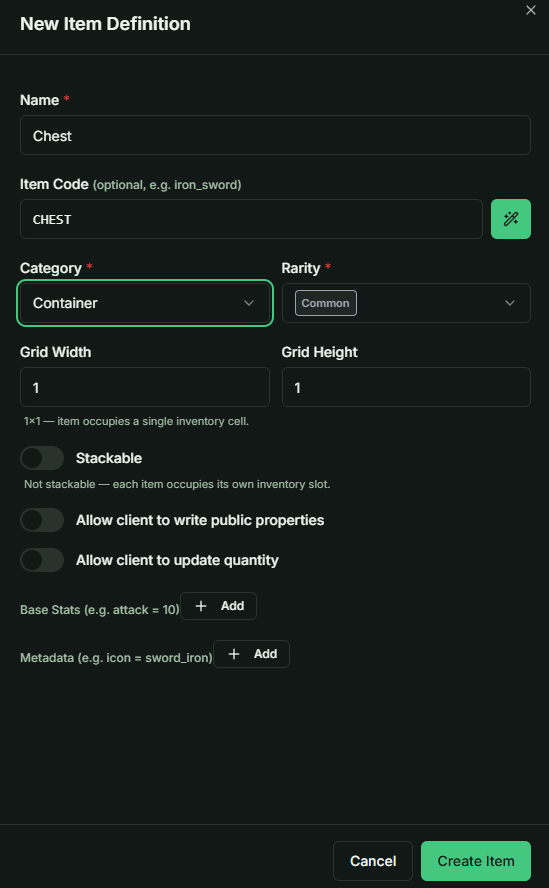
- Navigate to the Item Definitions list in the Admin panel.
- Create a new item named "Chest".
- Important: Set the Item Type to Container.
- Save the item definition.
2. Configuring the Container Grid
Now, define the internal logic (dimensions) for this specific container type.
- Navigate to the Containers tab in the Game Admin.
- Create a new container entry named "Chest".
- Set the Grid Dimensions to 10x10.
- In the Linked Item Definition field, select the Chest item you created in the previous step.
- Note: This links the "Chest" item to this specific 10x10 storage logic.
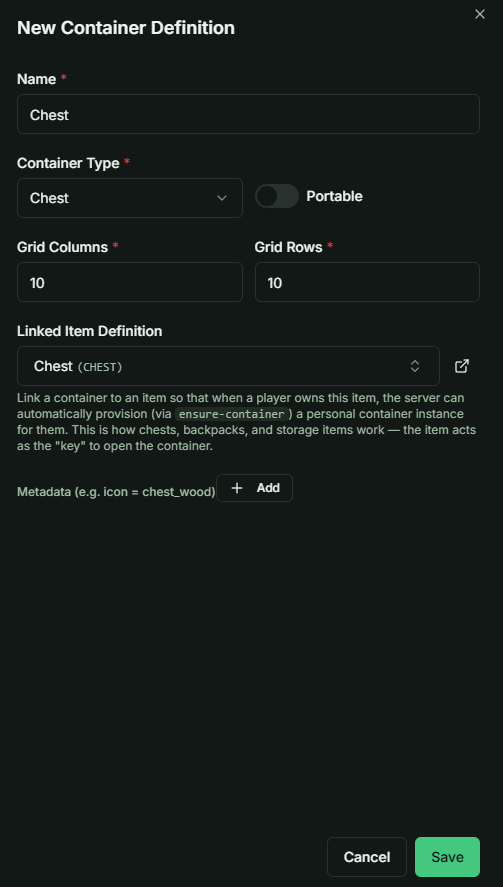
- Note: This links the "Chest" item to this specific 10x10 storage logic.
3. Distributing the New Container
To test the system, the player must own an instance of this container.
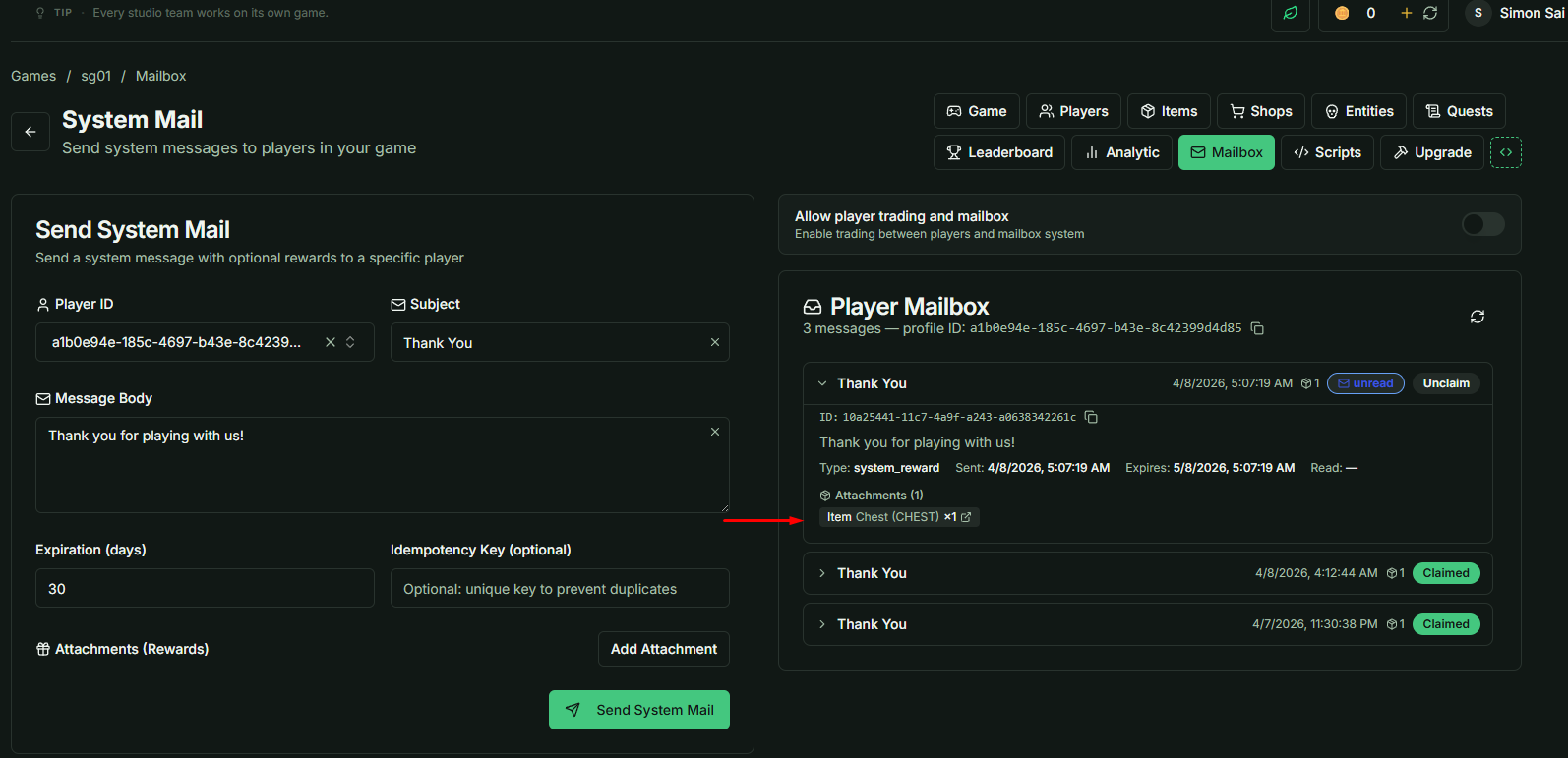
- Go to the Mailbox system.
- Send the Chest item to the target player.
- Switch to Unity and execute the Claim action for that mail.
4. Initializing Containers in Unity
Once the item is claimed, the system needs to recognize the new storage instance.
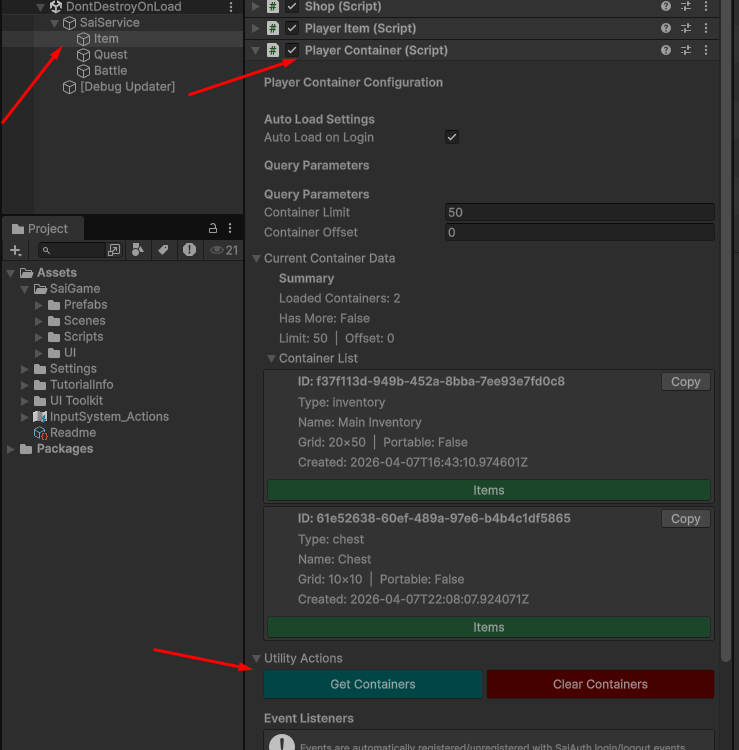
- In the Unity Hierarchy, locate the Item child object under
SaiService. - Open the PlayerContainer class component.
- Click the Get Containers button.
- Verification: You should now see two containers listed for the player:
- Main Inventory
- Chest
5. Transferring Items Between Containers
You can move items not just within a grid, but across different containers entirely.
Execution Steps
- Open the Item Move class component in Unity.
- Select Source & Target: * Select the Iron Sword (currently in Main Inventory).
- Select the Chest as the target destination.
- Execute: Click Move Item.
- Validation: Look for a
Successlog in the Console. This indicates the item has jumped from one container instance to another.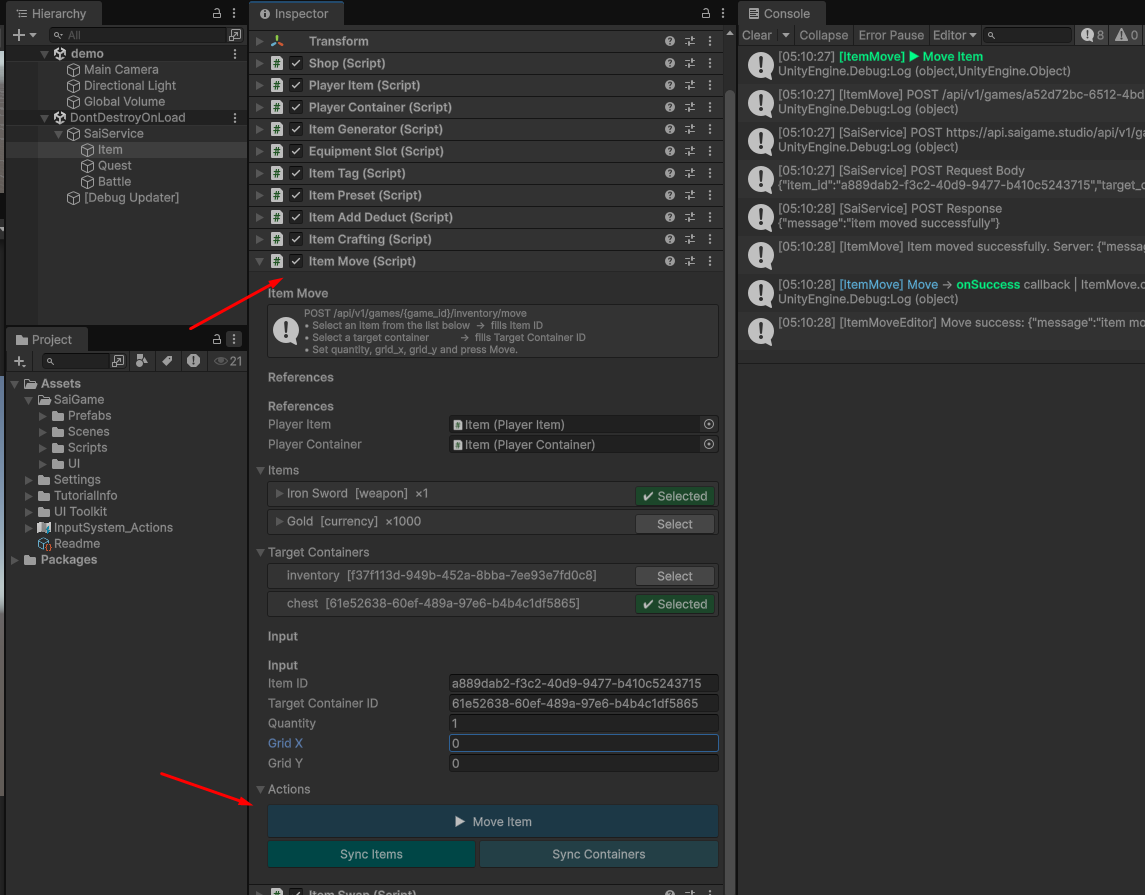
6. Final Verification
Check the backend to ensure the database reflects the cross-container move.
- Return to the Sai Game Admin web interface.
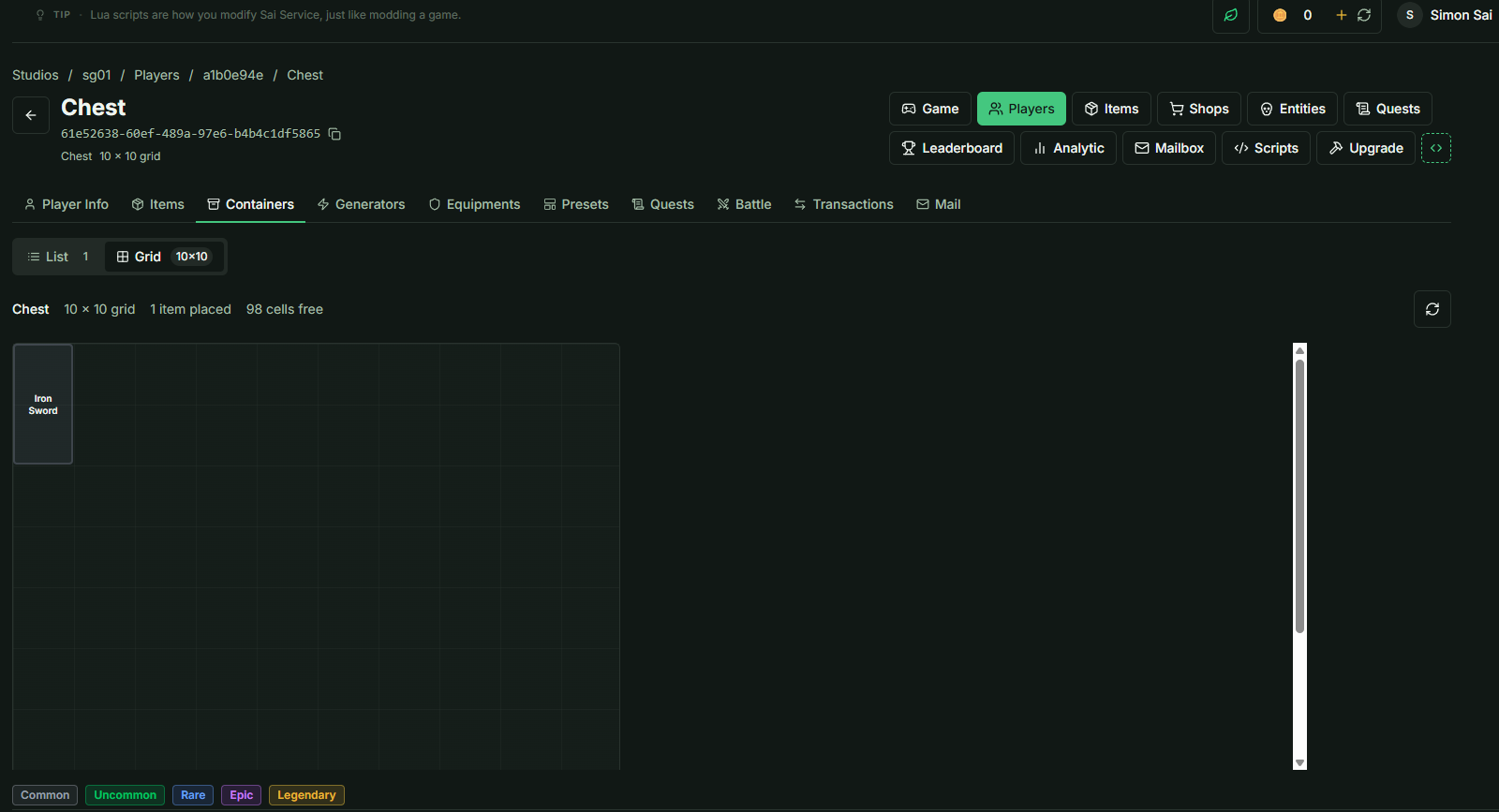
- Open the player's profile and check the Chest in Grid View.
- Result: The Iron Sword is now visible inside the Chest grid.
- Check the Main Inventory.
- Result: The Iron Sword is no longer present there.
- Result: The Iron Sword is no longer present there.
Note: Cross-container movement follows the same validation rules as grid movement. The target container must have enough empty slots to accommodate the item's dimensions.