
Craft an item
This guide explains how to configure and execute a crafting process using the Web UI and the Unity SDK.
1. Recipe Setup & Distribution
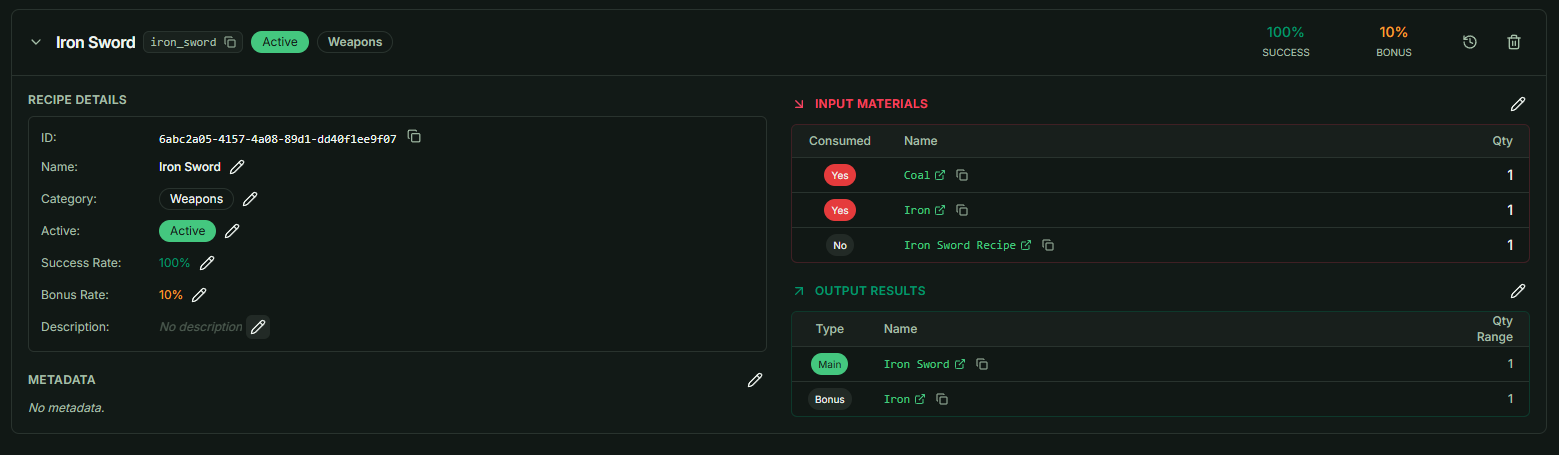
First, create a recipe as shown in the image below. To ensure we can test the feature, send all required Input Materials along with the Recipe Item to the test account via the Mailbox system.
2. Unity Integration: Executing the Craft
Open your Unity project and locate the Item Crafting class within the Child Object Item hierarchy. You can initiate a craft by entering either the recipe_id or the recipe_key.
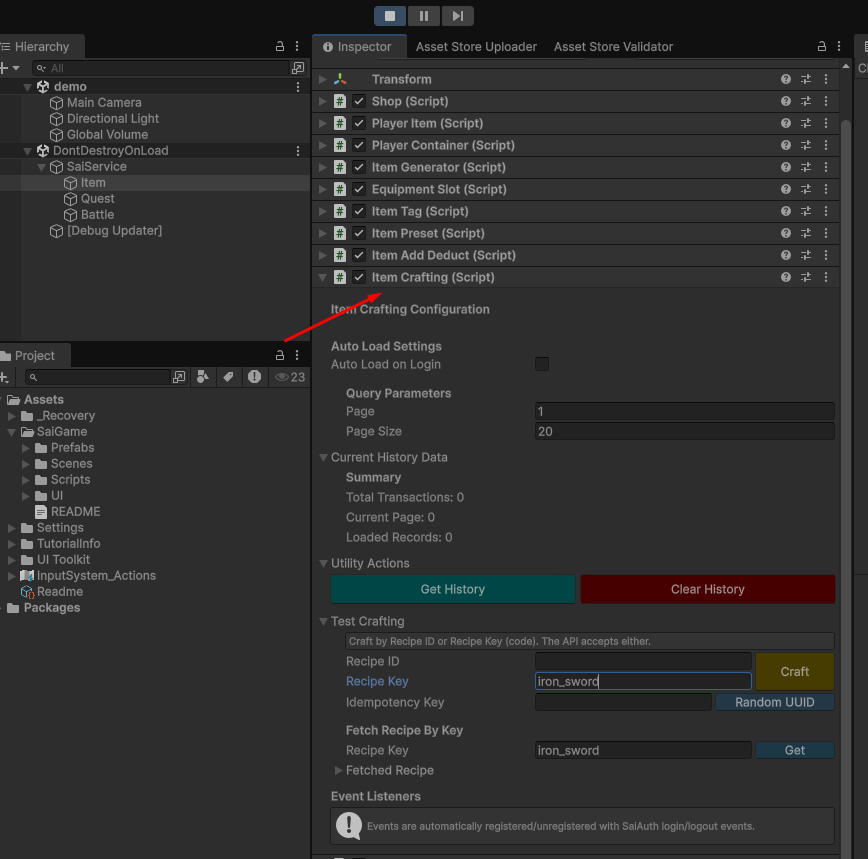
- Error Handling: If the player does not possess sufficient materials, the API will return an error. You should catch the error event in your code to trigger a UI notification for the player.
- Pre-craft Inspection: Before the player commits to crafting, use the
Fetch Recipe by Keymethod. This allows you to retrieve and display the recipe's details (inputs, outputs, and success rates) in your game’s UI.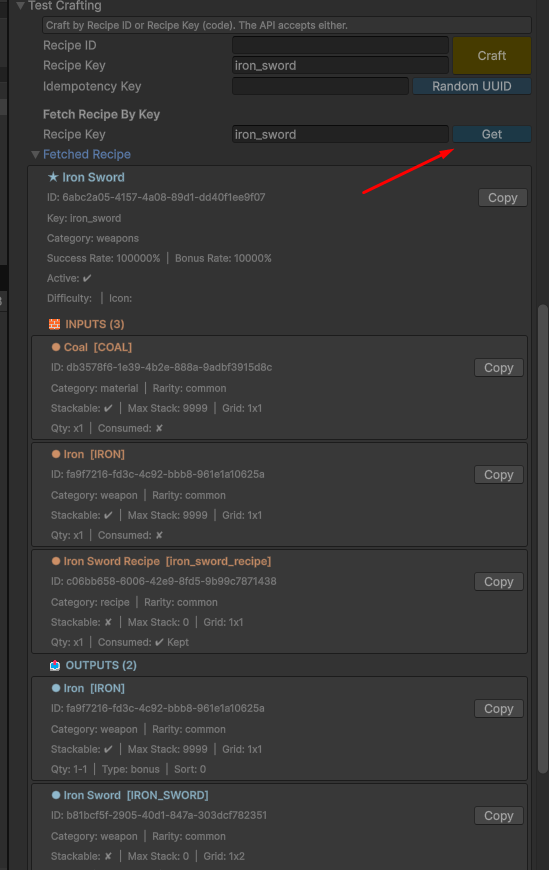
3. Understanding the Idempotency Key
When calling the Crafting API, you will notice a field for the Idempotency Key. This is a critical mechanism for ensuring network reliability.
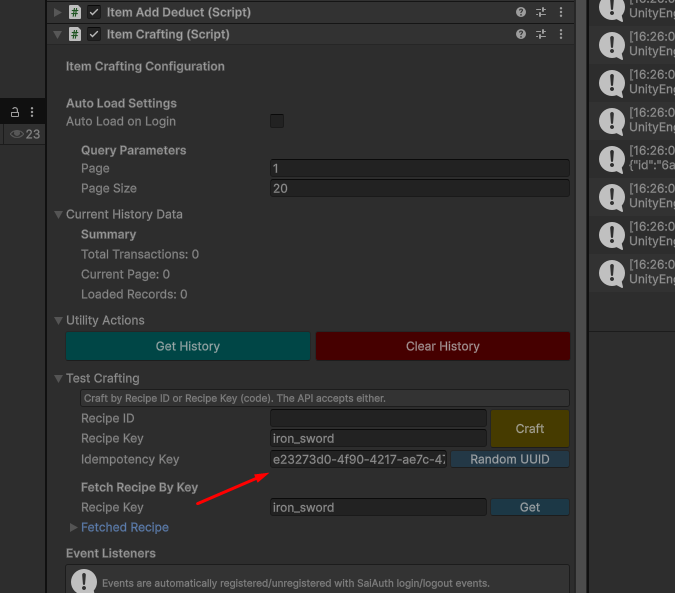 What is an Idempotency Key?
An Idempotency Key is a unique string generated by the client for a specific request. Its primary purpose is to prevent accidental duplicate operations.
- The Problem: If a player clicks "Craft" and the network glitches, the client might retry the request. Without this key, the server might process the craft twice, consuming double the materials.
- The Solution: If the server receives a second request with the same Idempotency Key, it recognizes that the operation has already been performed. It will return the result of the original successful request instead of executing the craft again.
Best Practice: Generate a unique GUID for every new craft attempt, but reuse that same GUID if you need to retry the exact same request due to a timeout.