
Complete a chain quest
This section covers how to test your quests effectively and how to interact with them within the Unity environment.
1. Testing Best Practices
- Simplified Testing: For faster verification, set the conditions of your one_time quests to Login. This allows for immediate completion.
- Item Conditions: If your quest requires specific items, ensure you use administrative tool to grant those items to your test account before proceeding.
2. Unity Integration (Quest Child Object)
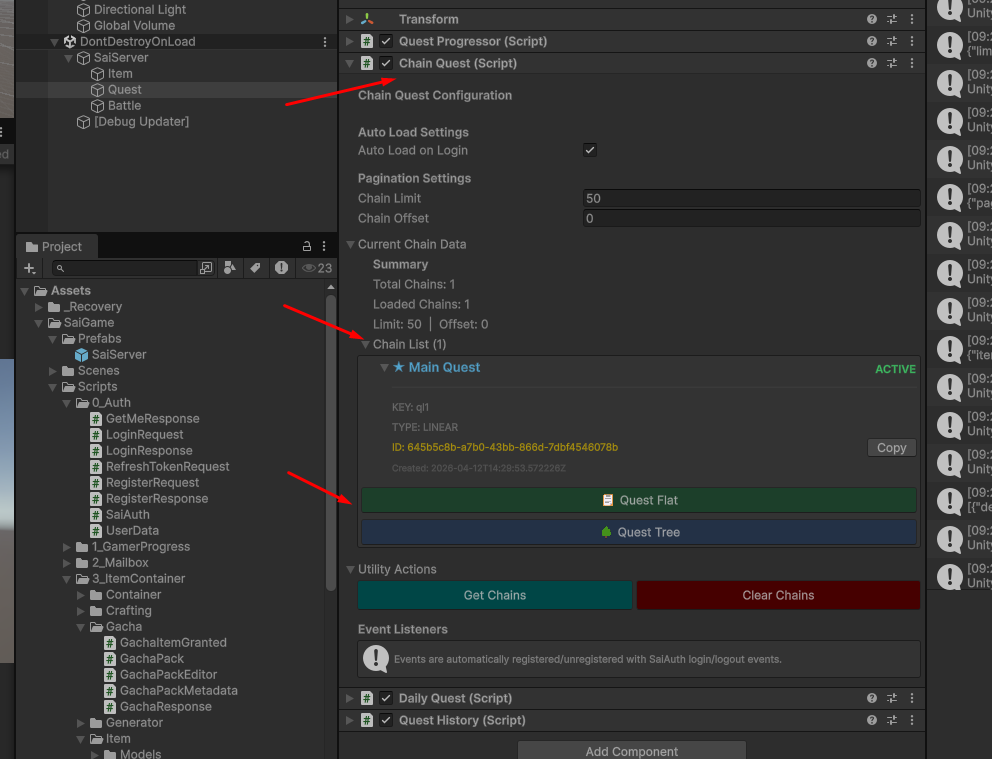
In Unity, locate the Quest Child Object. Within this object, you will primarily work with the ChainQuest class.
ChainList Overview
The ChainList displays all the Quest Chains you have created. Each chain provides two distinct ways to view its contents:
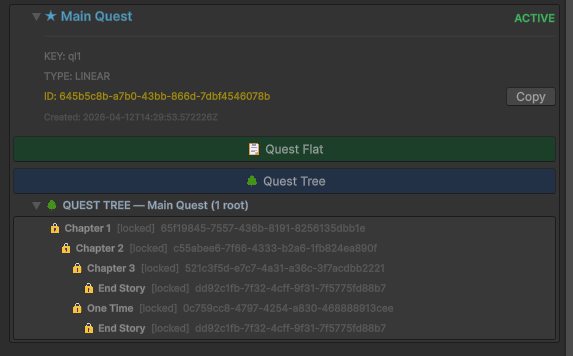
A. Quest Tree
- Purpose: Displays the entire quest flow in a tree structure.
- Use Case: Use this to verify that the data is synchronized correctly with the Web UI.
- Interaction: This is a read-only view; you cannot interact with the quests here.
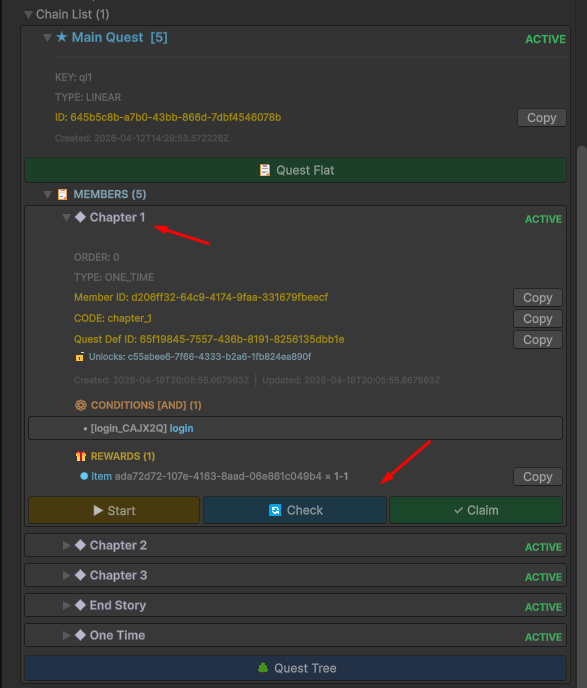
B. Quest Flat
In this view, you can see individual quests along with three essential action buttons:
- Start: Manually triggers the mission. Clicking this creates a Quest Instance for the player, allowing progress tracking to begin.
- Check: Triggers a manual progress update. The backend will verify item counts and activity logs to update the quest status.
- Note: The backend does not constantly run background checks. You must call this function via the client (e.g., when a player opens the Quest Detail UI) to refresh the status.
- Claim: If the quest state is Completed, use this to collect rewards. Once claimed, a one_time quest becomes permanently inaccessible for that account.
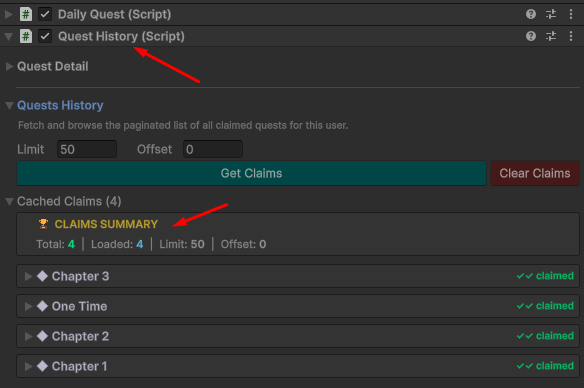
3. Reviewing Progress
After completing and claiming your quests, you can verify the results and audit the data by accessing the QuestHistory class, which stores a full log of the player's past activities.
Developer Tip: To ensure a smooth player experience, automate the "Check" function at logical gameplay intervals—such as when entering a specific zone or opening the quest log—so the UI always feels up to date.