
Add item to Shop
This guide explains how to add and manage individual products within a specific shop.
1. Item Basics & Display
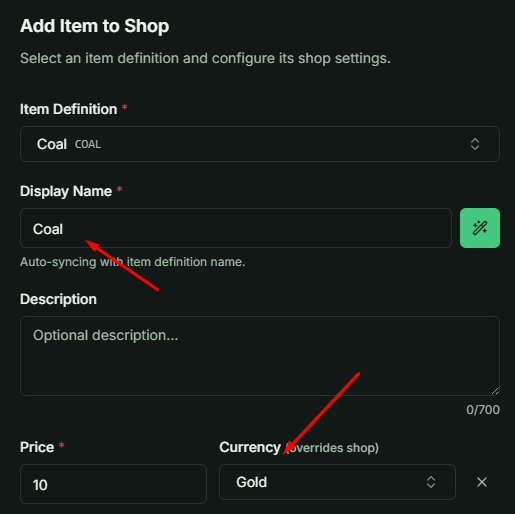
Each shop supports up to 99 items. When adding an item from your Item Definitions, you have the flexibility to customize its appearance:
- Name Override: You can set a Display Name for the shop item that differs from its original name in the Item Definition.
- Currency Override: By default, items use the shop's currency. However, you can assign a specific currency to an individual item, overriding the shop's default setting.
2. Purchase Modes
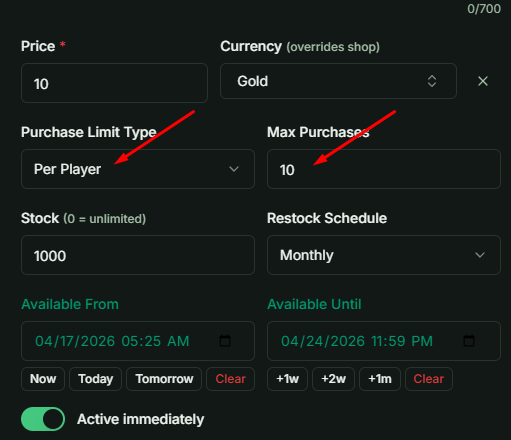
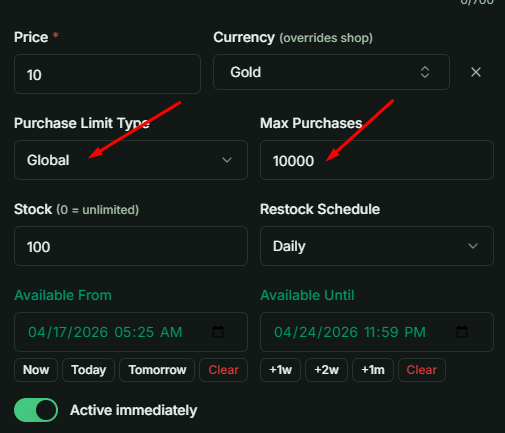
There are three distinct purchase modes to control how items are distributed:
- Unlimited: There are no restrictions on how many times an item can be bought, unless a Stock value greater than 0 is defined.
- Per Player: Limits the maximum number of times an individual user can purchase the item. Even if the global stock is available, a player cannot exceed their personal limit. If the stock runs out before a player hits their limit, they must wait for a Restock Schedule (if configured).
- Global: Sets a purchase limit for the entire player base combined. Unlike "Stock," which can be replenished via a schedule, the Global Max Purchase limit is permanent and cannot be reset.
 |  |
|---|
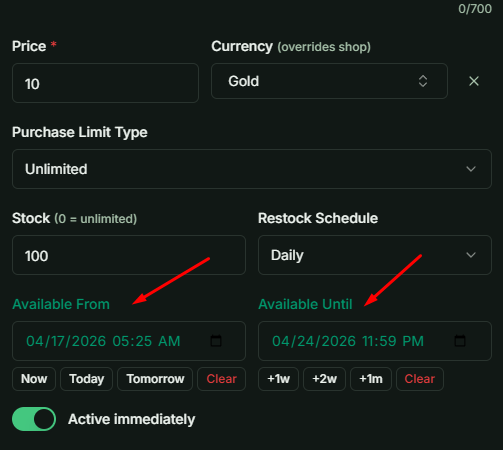
3. Availability & Scheduling
You can control exactly when an item appears and becomes purchasable by setting the From and Until timeframes. If the current time is outside this window, the item will be unavailable to players.
4. UI Organization
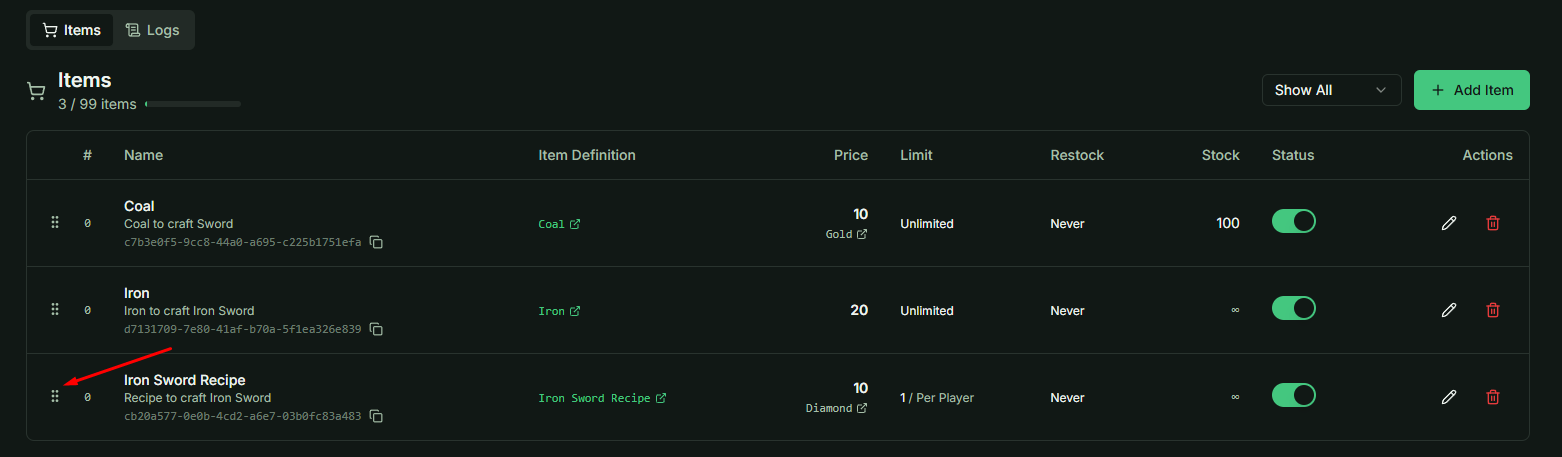
The shop item list supports Drag & Drop functionality. This allows you to easily reorder items to prioritize specific products or organize the shop's layout as it will appear in the game client.
Tip: Use the Per Player mode combined with a Restock Schedule to create "Daily Deals" or "Weekly Specials" that keep players returning to your shop regularly.